Start here

What Democracy Ops is, who does what, and how a campaign runs from first list to follow-up.

Start here

What Democracy Ops is #

A web app for authorized campaign and civic groups to run volunteer phone banks and keep track of the people they reach.

Democracy Ops is a web app that helps campaign committees, party organizations and civic groups run volunteer phone banks. Volunteers call from a phone, tablet or computer in their browser. Organizers load the call lists, write the scripts, watch the results and decide who gets a follow-up. There is nothing to install from an app store.

Every call is made by a person. A volunteer taps Start calling, the app picks the next person on the list, the volunteer reads the script and talks with them, and then saves what happened. The app does not auto-dial in bulk and never plays a recorded message.

What the app takes care of

  • The queue. It gives each caller the next person to call, one at a time, so two volunteers never ring the same person at once.
  • The script. It shows what to say, with buttons that branch to the next part of the conversation.
  • The result of every call. Callers pick what happened and can add a note.
  • The calling rules. Calling hours in the person's time zone, Do Not Call, wrong numbers and retry limits are checked by the app, not left to memory.
  • Reporting. Results for each operation, calls by caller, a call report you can download, and an audit log of sensitive actions.
  • People. One record per person with a stage, tags, an owner, notes, follow-ups and call history, plus lists you can send to PDI.
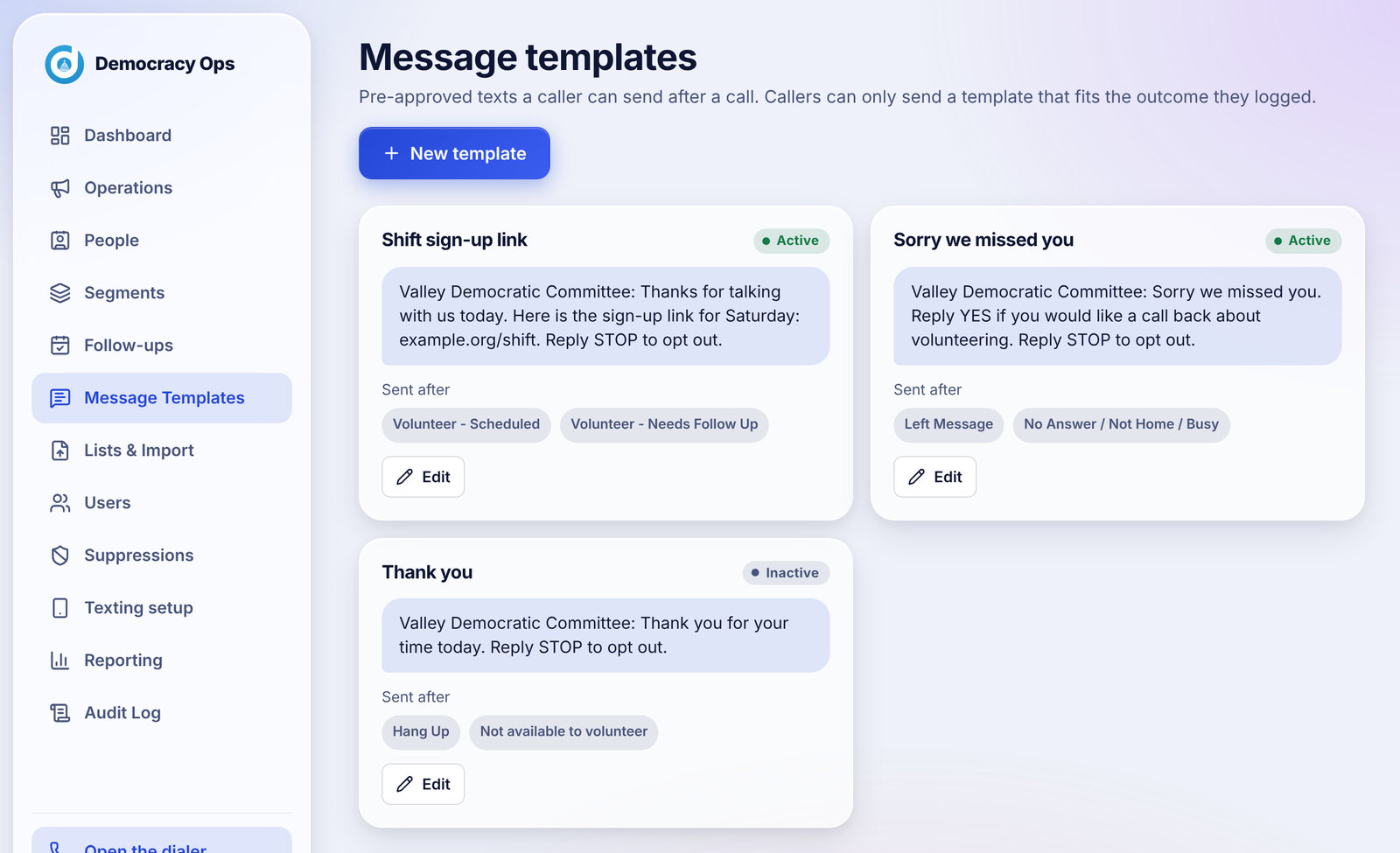
  • Follow-up texts. Approved texts a caller can send after a call. These need carrier approval first; see Texting: what is live today.

The two sides of the app

PartWho uses itWhat it is for
Calling screenCallers (volunteers)Start calling, read the script, save the result, set callbacks. Built for a phone first.
Admin areaOrganizers and org adminsDashboard, Operations, People, Segments, Follow-ups, Message templates, Lists & import, Users, Suppressions, Texting setup, Reporting and Audit log (org admins only).
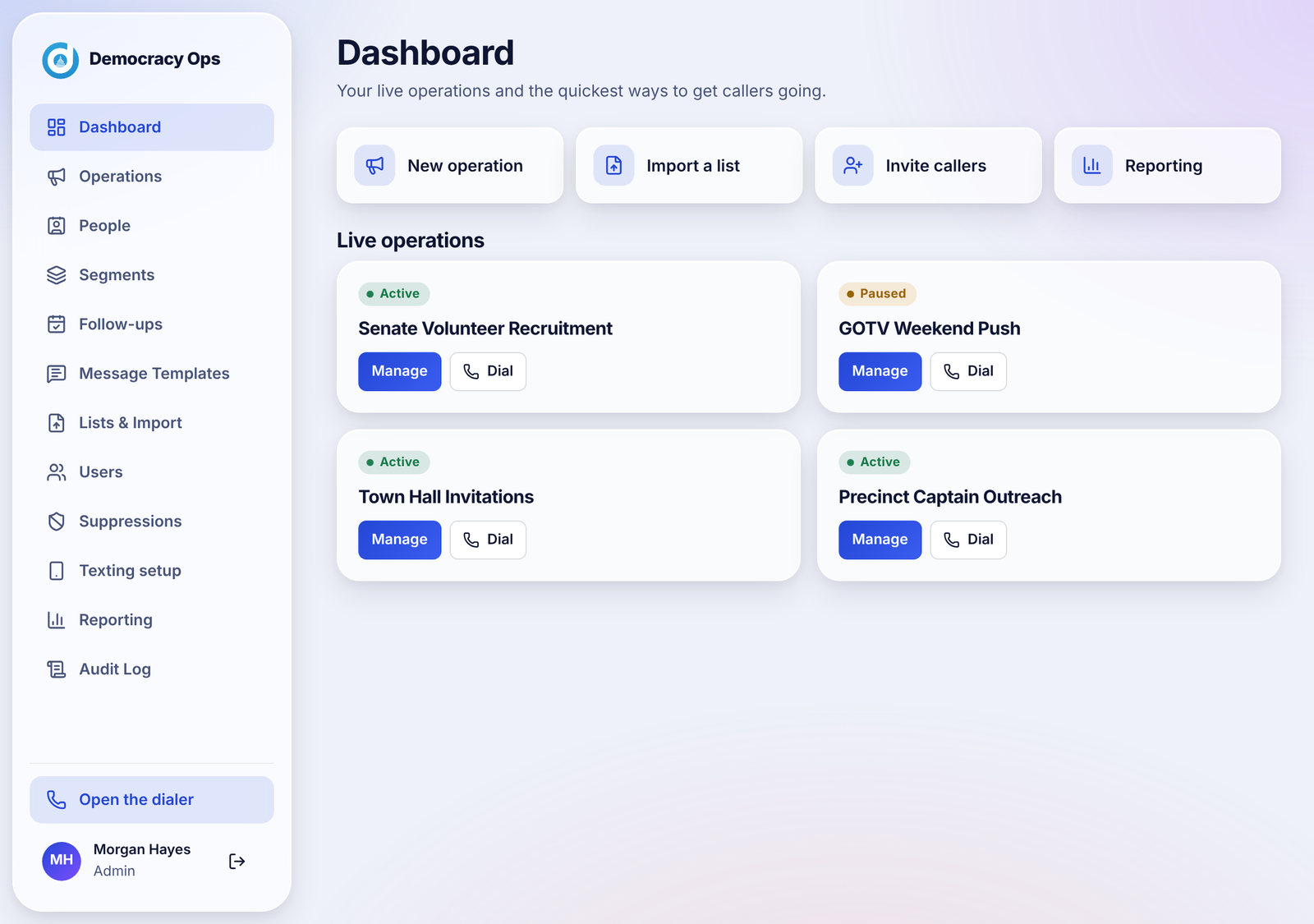
Screenshot: The admin area opens on the Dashboard: your live operations and quick actions to create an operation, import a list, invite callers or open Reporting.
Sample data The admin area opens on the Dashboard: your live operations and quick actions to create an operation, import a list, invite callers or open Reporting.

Questions

Is Democracy Ops a robocaller or an auto-dialer?

No. A person starts every call by tapping Start calling, and a person talks with whoever answers. The app does not dial lists in bulk and does not play recorded messages.

Do volunteers need to install anything?

No. The calling screen runs in the browser on a phone, tablet or computer. The browser will ask to use the microphone, which is used only to connect the call.

Does Democracy Ops record calls?

No. Calls are placed from a web browser and the app does not record the audio of calls. It does record the result a caller saves and any notes they write.

Who is it for?

Organizations that are authorized to contact the people on their lists, such as campaign committees, party organizations and civic groups. Every list that is imported needs a written note about where it came from and why the organization may contact those people.

How does my organization get started?

Organizations are set up by Democracy Ops. Email us at and tell us who you are and what you want to run. Please do not send passwords or contact lists by email.

Where do I sign in?

Organizers and admins sign in at app.democracyops.org with their email and password. Callers do not sign in with a password: they open the calling link their organizer sent them.

Can I run more than one calling effort at a time?

Yes. Each effort is an operation, and your Dashboard lists every active one. Each operation has its own list, script, callers and numbers.
Start here

Who can do what #

Callers, organizers and org admins, and exactly what each role can and cannot do.

Everyone in an organization has one of three roles. The role decides which screens they see and what they can change.

RoleWho it is forWhat they can do
CallerVolunteers who make the callsUse the calling screen only: start calling, read the script, save results and notes, set callbacks, see the leaderboard when it is on. Callers never see the admin area.
OrganizerStaff and trusted volunteers who run the callingCreate and edit operations and scripts, import lists, set area code priority, create caller links, see Reporting and download reports, work in People, Segments and Follow-ups, add Suppressions, import past calls, and download the texting list for PDI.
Org adminThe person responsible for the organization's accountEverything an organizer can do, plus the items in the next list.

Only an org admin can

  • Add organizers and admins by email, and change anyone's role (the Users page).
  • Read the Audit log.
  • Link a Google Sheet to an operation.
  • Create and edit message templates.
  • Fill in Texting setup, the carrier registration form.
  • Remove a number from Suppressions.
  • Turn on automatic stages and automatic follow-ups in People, and run Fill stages.

Questions

Can a caller see the admin area?

No. Callers only see the calling screen. They do not see lists, reports or the People pages. The one thing they see about other callers is the leaderboard, when it is on: first names, a last initial and counts.

What can a caller see about the person they are calling?

The calling screen shows the person's name, phone number and city, a short History card (see The History card) and the script. Callers do not see the whole list.

Can an organizer make someone an org admin?

No. Only an org admin can add admins or change roles.

Can one person have two roles?

No. Each person has one role in an organization. An organizer who also wants to make calls can open the dialer from the admin area with Open the dialer.

Why can't I see a page my coworker can?

Their role is probably higher than yours. Ask an org admin to change your role on the Users page if you need more access.

Start here

How a campaign runs, start to finish #

Eight steps from importing a list to following up with the people who said yes.

This is the usual order. Each step links to the article with the details.

  1. Import your list. Upload a CSV on Lists & import, check that each column was matched correctly, write where the list came from, and start the import. Duplicate numbers are skipped. Importing a list
  2. Create an operation. An operation is one calling effort: a list, a script and your callers. Give it a name on Operations. Operations
  3. Write and publish the script. Add sections and response buttons, then publish. Callers always see the latest published version. The script editor
  4. Set the rules for the operation. Rank area codes if you want to reach nearby people first, choose a voicemail rule, and optionally link a Google Sheet. Area code priority
  5. Invite callers. Create a personal or shared calling link on Users and send it. Volunteers open it and start calling with no password. Users and caller links
  6. Start the operation and let callers call. A new operation is a draft, and callers cannot get people until you tap Start operation on its page. Then they tap Start calling, talk, and save a result. Do Not Call and Wrong Number are suppressed right away. Making a call
  7. Watch it happen. Reporting shows outcomes, calls by caller and recent calls as they come in. Reporting
  8. Follow up. Use People, Segments and Follow-ups to see who said yes or needs another call, add tags, hand out tasks and send the right people to PDI. People
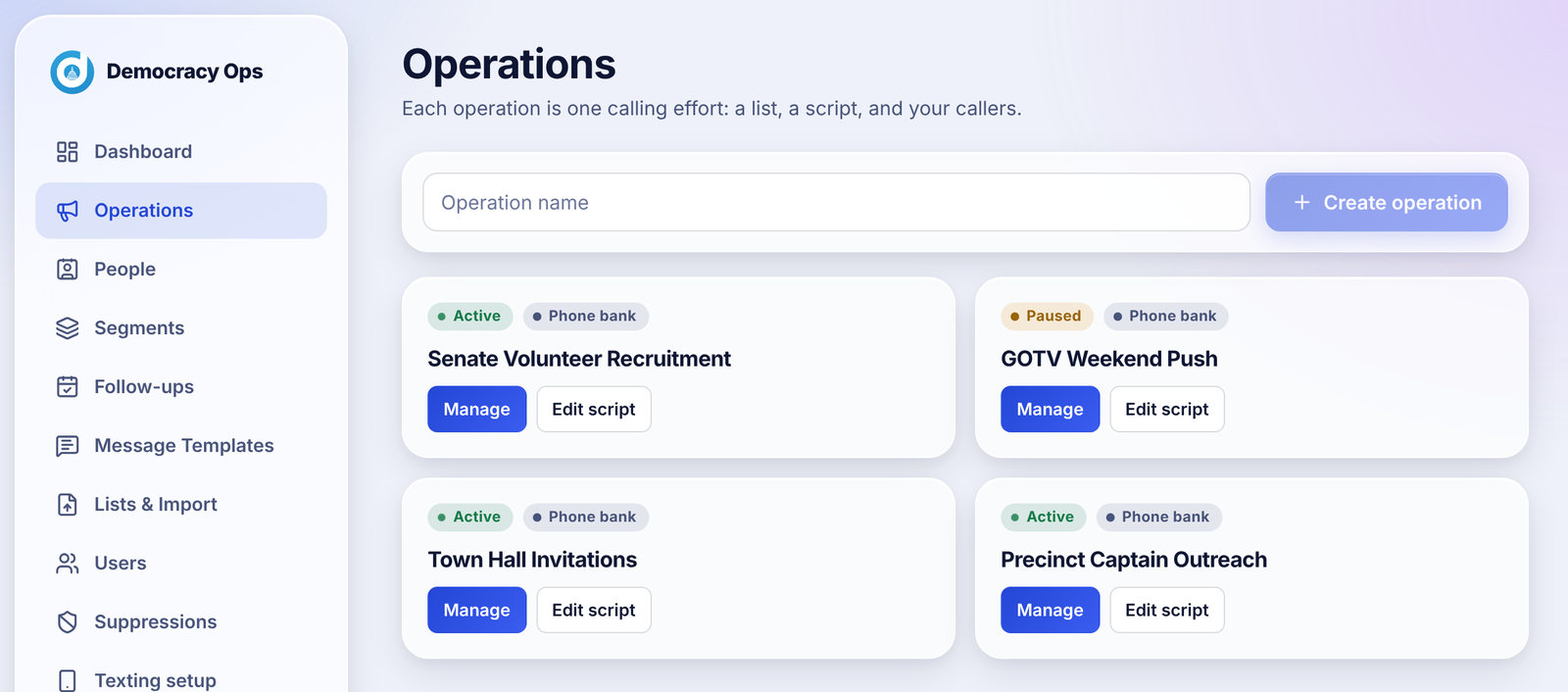
Screenshot: Operations lists every calling effort with its status. Manage opens the settings; Edit script opens the script editor.
Sample data Operations lists every calling effort with its status. Manage opens the settings; Edit script opens the script editor.

Questions

What is the least I need to start calling?

A list, an operation attached to that list, a script so callers have words to read, and a calling link for each volunteer or group.

Can I change the script while people are calling?

Yes. Publish a new version and callers get it on their next call. The old versions stay in the version history, and you can see which one is live.

Can I pause calling in an emergency?

Yes. On the operation's page, tap Pause. Nobody is given new people until you tap Resume.

Do I have to use People and Segments?

No. They are there when you want to follow up, but calling works without them.

Start here

Words we use #

Plain definitions of operation, queue, disposition, suppression, segment, stage and the other terms in the app.

Operation
One calling effort. It has a contact list, a script, callers, a status and its own numbers.
Contact list
The spreadsheet you imported. Each row becomes a person.
Person
A record in People. One person per phone number, even if they appear on more than one list.
Queue
The people an operation still has left to call, in the order callers are given them.
Result (outcome, disposition)
What a caller picks after a call, such as Left message or Volunteer - Scheduled. These words mean the same thing.
Hold (lease)
When a caller is given a person, that person is held for them for 10 minutes so no one else rings them.
Cooldown
The wait before a person who did not answer can be offered again: 2 hours.
Callback
A time a caller sets to call a person back, picked on the result screen.
Suppression
A number that must never be called or texted. Do Not Call and Wrong Number are suppressed automatically.
Script
What callers read, made of sections. Response buttons on a section lead to the next one.
Caller link
A web address that lets a volunteer start calling without a password. Personal links are for one named person; shared links work for a group.
Stage
Where a person is in your follow-up: New, Trying to reach, Needs follow-up, Scheduled, Showed up, Active volunteer or Declined.
Tag
A short label you add to a person, such as Driver or Evenings.
Owner
The organizer or admin responsible for a person.
Segment
A saved group of people defined by rules, such as "Stage is Needs follow-up and last contacted more than 14 days ago".
Follow-up
A task on the Follow-ups list for the team: call this person back, confirm a shift. A follow-up never sends anything to the person.
Pipeline
The board view of People, one column per stage.
PDI
The voter and contact database many campaigns use. Democracy Ops produces a four-column file you upload to PDI.
Carrier registration
The approval U.S. mobile carriers require before an organization may send texts. Calling does not need it.
Audit log
A record of sensitive actions: who did what and when.

Start here

Getting help #

How to reach us, and what to include so we can help quickly.

Email us at . That one address handles support, privacy requests and security reports.

To help us answer quickly, include:

  • Your organization's name and your role (caller, organizer or org admin).
  • What you were trying to do, and what you saw instead. The exact words on the screen help most.
  • The device and browser you were using, if it is a calling problem.

Questions

Is there a phone number for support?

Email is how we handle support right now: .

Something went wrong while I was calling. Who do I tell?

Tell your organizer first. They can pause the operation or give you a new link. If it looks like a problem with the app itself, they or you can email us.

For callers

Everything a volunteer sees: joining with a link, making a call, reading the script, saving the result and setting callbacks.

For callers

Joining with a link #

Open the calling link your organizer sent you; no password or account is needed.

Your organizer sends you a calling link by text or email. Open it on the phone or computer you will call from. You will see Join the calling team with your organization's name and the operation you are calling for.

Two kinds of link

LinkWhat you seeGood for
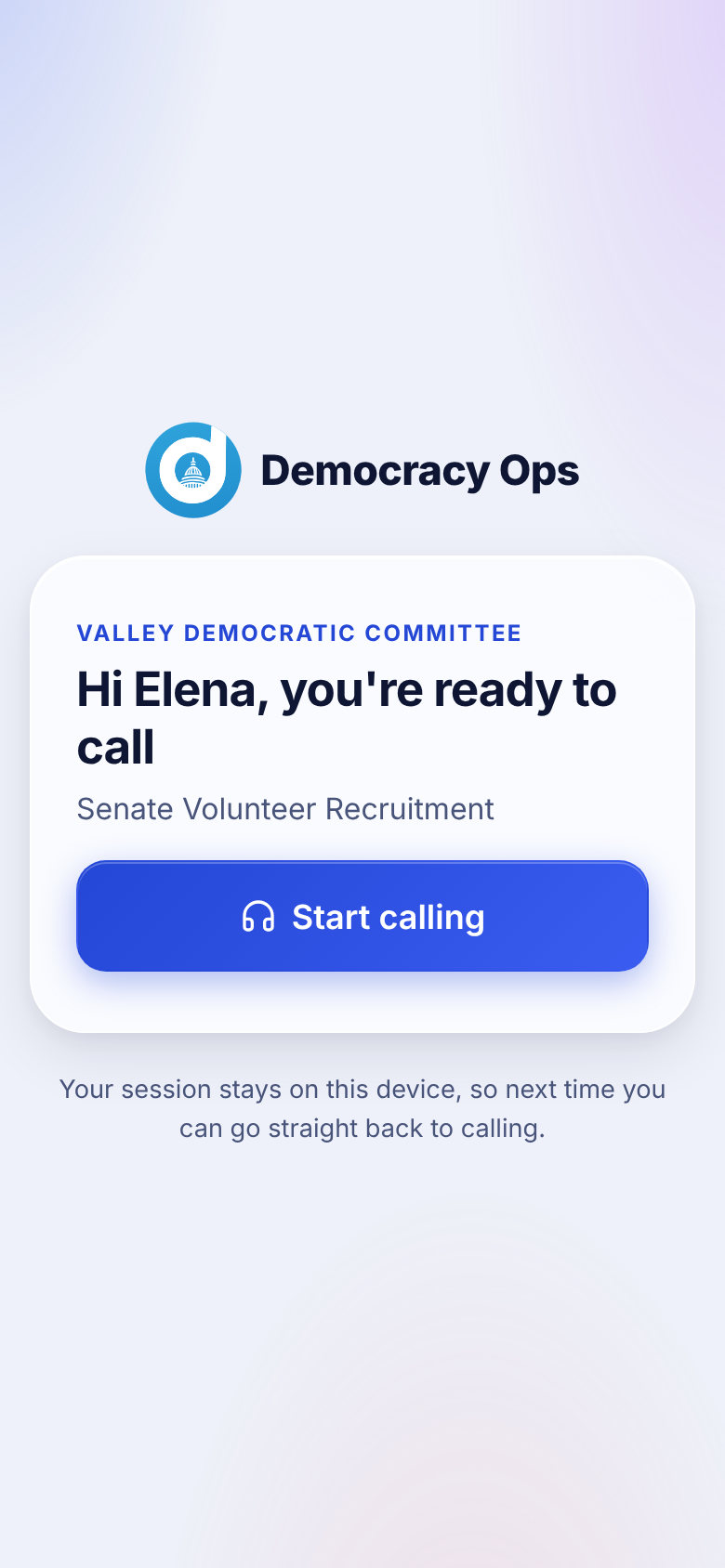
Personal"Hi Elena, you're ready to call" and one Start calling button. Your name is already on it.One named volunteer.
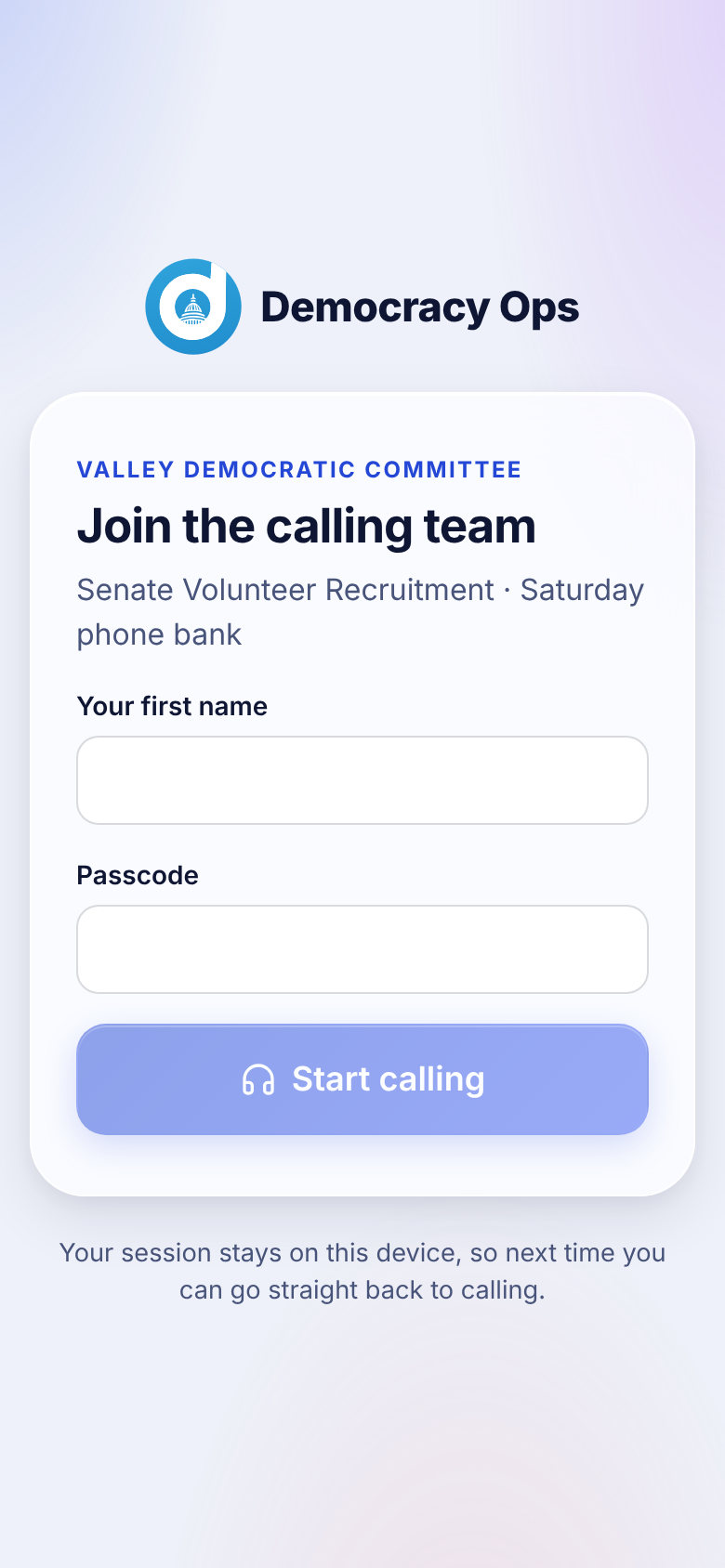
SharedYou type your first name, and a passcode if your organizer set one, then tap Start calling.A group, such as a Saturday phone bank. Each person enters their own first name.
Phone screen: A personal link. One tap and you are in.
A personal link. One tap and you are in.
Phone screen: A shared link. Enter your first name and the passcode your organizer gave you.
A shared link. Enter your first name and the passcode your organizer gave you.

Your session stays on the device you joined from, so next time you can go straight back to calling without using the link again.

If something is off

  • "This link isn't working." The link may have expired, been replaced or been turned off. Ask your organizer to send a new one.
  • "This device is signed in as… Continuing will sign that account out." Someone else was signed in on this device. Continue only if you are sure you want to switch.

Questions

Do I need an account or a password?

No. Callers join with a link and need nothing else. Organizers and admins sign in with an email and password.

My link says it is not working. What do I do?

Links expire, and an organizer can replace or turn one off. Ask your organizer for a new link. Do not try to guess or edit a link.

How long does a link last?

Your organizer chooses. A personal link lasts 14 days unless they pick another length, and a shared link lasts 7 days unless they pick another length (a shared link can be set for up to 90 days).

Can I use my link on a second device?

Opening your link again on the same device takes you straight back to calling. Every link has a limit on how many people can join with it, so ask your organizer if you need to use another device.

What does the passcode on a shared link do?

It stops a stranger who finds the link from getting in. Your organizer tells you the passcode separately. Too many wrong tries lock the passcode for a while.

What happens if my organizer turns off my link?

Anyone who joined with that link is signed out right away and cannot call anymore. Your organizer can give you a new link.

For callers

Signing in as an organizer or admin #

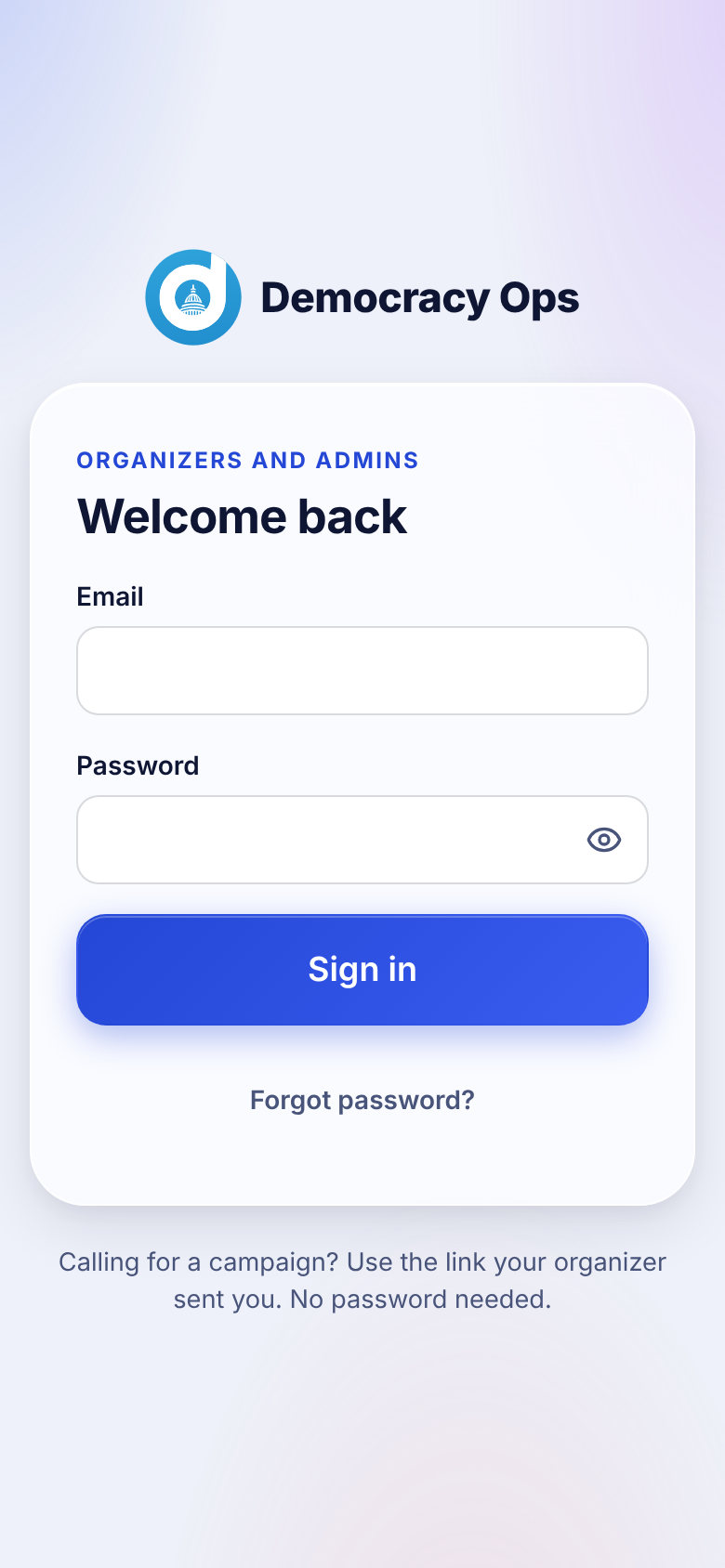
Organizers and admins sign in with an email and password at app.democracyops.org.

Organizers and admins sign in at app.democracyops.org with their email and password. A new organizer or admin gets an email from an org admin with a link to set their password.

Phone screen: The sign-in page. The note at the bottom points callers to their link.
The sign-in page. The note at the bottom points callers to their link.
  • Forgot your password? Tap Forgot password? on the sign-in page and we will email you a reset link.
  • Joined with a calling link and now need an admin or organizer role? An org admin can enter your email on the Users page. You get a link to set a password, and your calling history stays with you.

Questions

I never got my invite email.

Check spam first. Then ask your org admin to send it again from the Users page. They can also use Forgot password? on your behalf: you can do the same on the sign-in page with your email address.

I can sign in, but I do not see the admin pages.

Your role may be caller. Ask an org admin to change it on the Users page.

For callers

The calling screen #

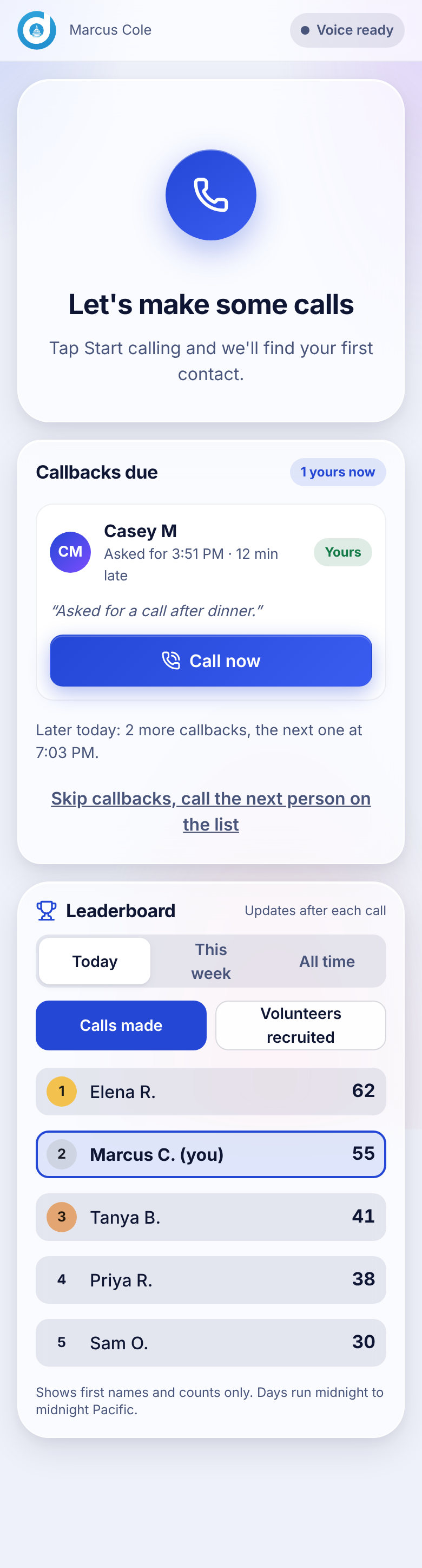
The Ready screen: Start calling, the voice status, callbacks that are due, and the leaderboard.

When you open your link you land on the calling screen. Everything you need is on one page, and the main button stays at the bottom where your thumb is.

  • Top bar. The logo, your name, and a status chip. Voice ready means calling is set up. Setting up means wait a moment. After your first call a small phone chip also counts your calls this session.
  • Ready card. "Let's make some calls" the first time, and "Ready when you are" after that. It tells you how many people are still left in this operation.
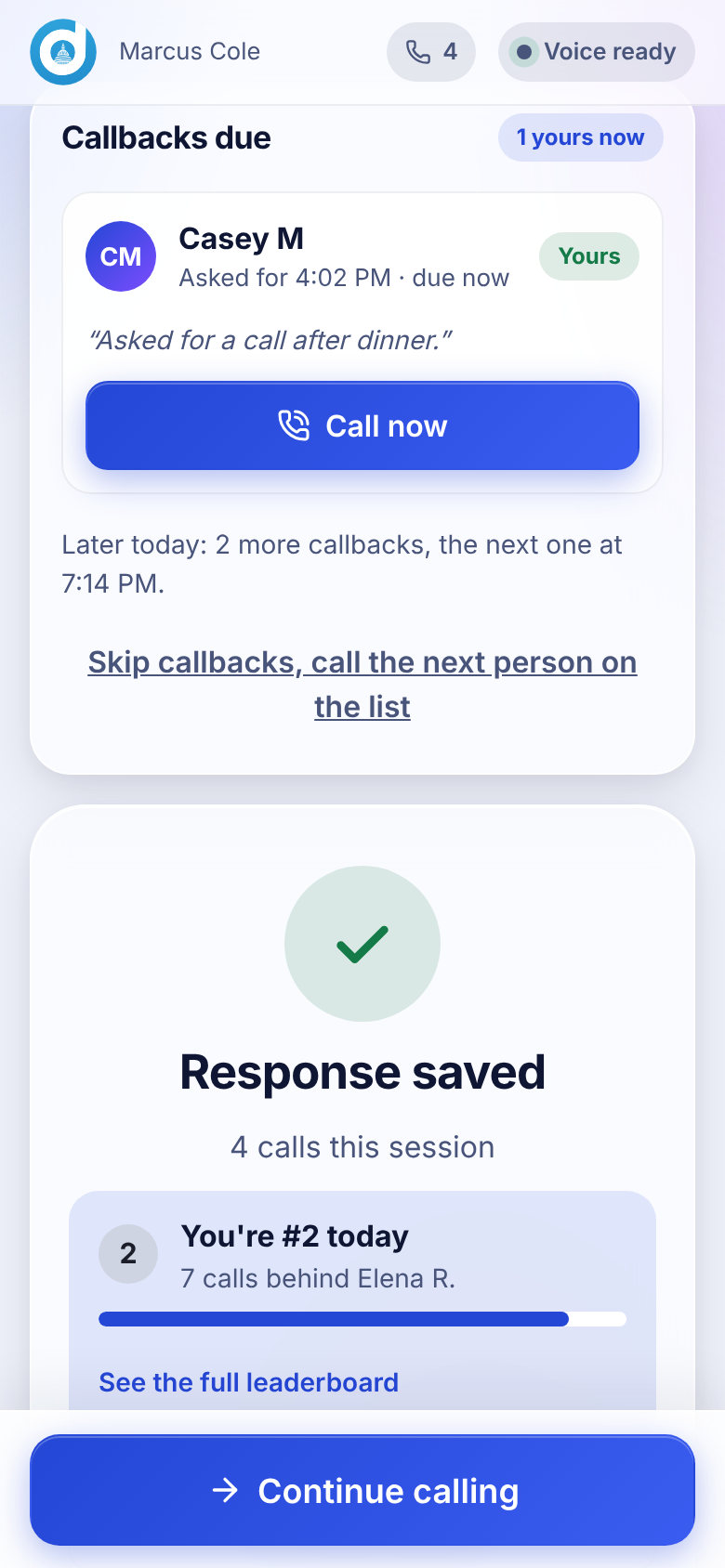
  • Callbacks due. People who asked to be called back and whose time has come. See Callbacks.
  • Leaderboard. Shown only if your organizer turned it on. See The leaderboard.
  • Start calling. Finds your next person and places the call.
Phone screen: The Ready screen with a callback due and the leaderboard below it.
The Ready screen with a callback due and the leaderboard below it.

Questions

The button says "Setting up" or "Voice unavailable."

"Setting up" turns into "Start calling" in a moment. If it says Voice unavailable, check your internet connection and reload the page. The browser must be allowed to use your microphone when it asks.

What does the number beside the phone icon mean?

It counts the calls you have made in this session.

What does "contacts remaining" mean?

It is the number of people still left in the operation's queue. It does not mean you can call all of them right now: calling hours and cooldowns apply.

Can I take a break and come back?

Yes. After you save a result, tap Take a break. When you are ready, tap Start calling again. Your session stays open.

For callers

Making a call #

Tap Start calling, read the opening while it rings, talk, then end the call.

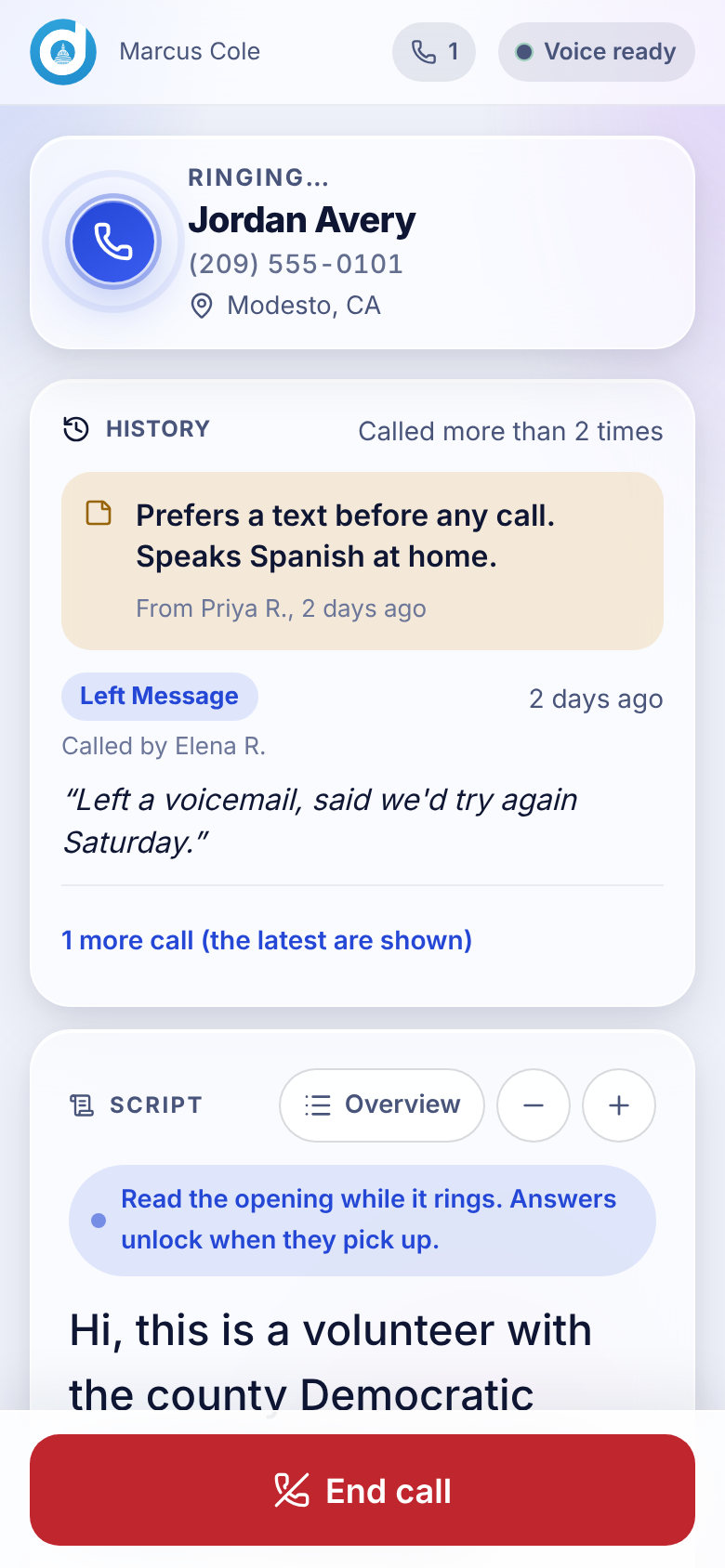
  1. Tap Start calling. You see "Finding your next conversation" for a moment while the app picks a person for you. The call is placed right away.
  2. Read the opening while it rings. The first section of the script is already on screen. The response buttons unlock when the person picks up.
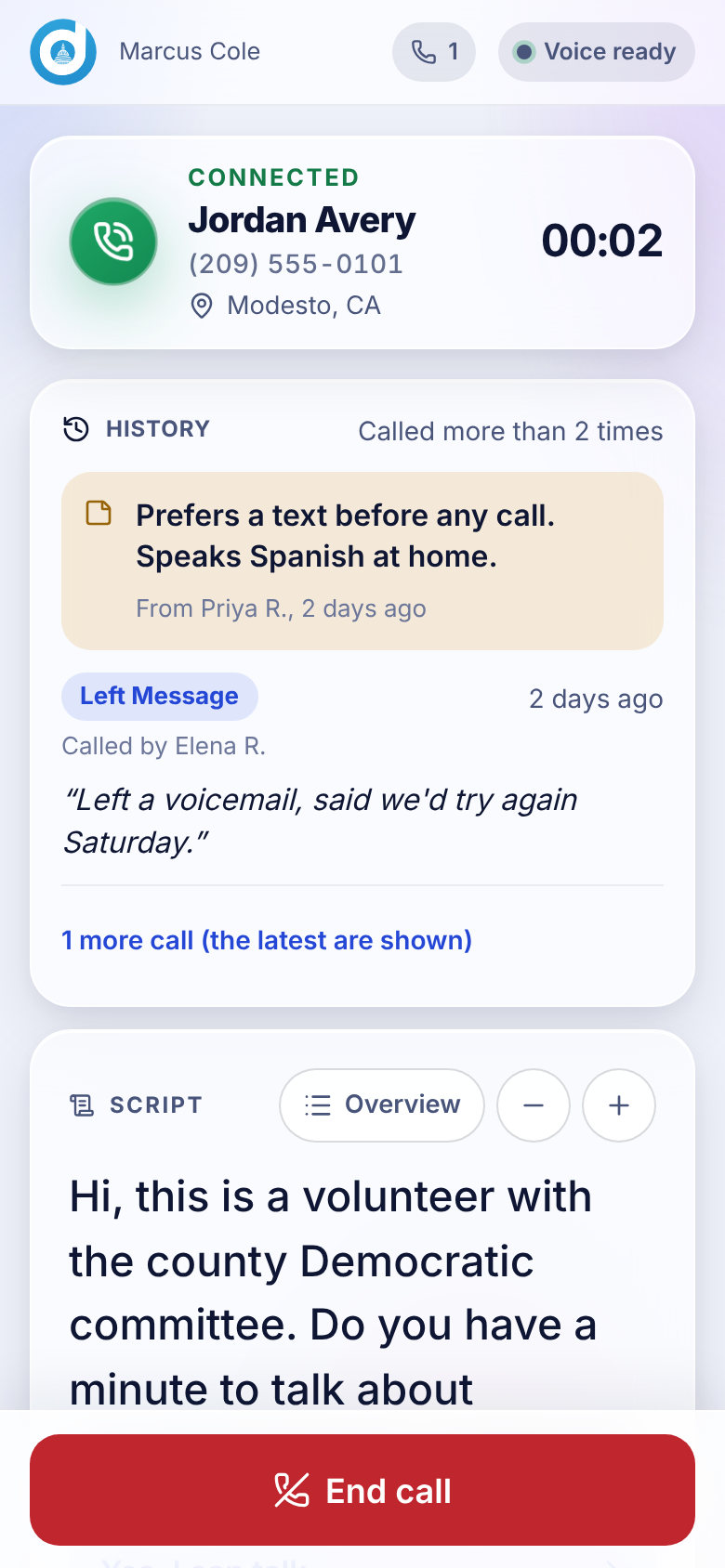
  3. Talk. When they answer the screen turns green and says Connected, a timer starts, and you hear a soft cue so you know to begin.
  4. Tap End call when you are done. If the other person hangs up first, the app takes you to the result screen by itself.
Phone screen: Ringing. The name, number and city are above the History card and the script.
Ringing. The name, number and city are above the History card and the script.
Phone screen: Connected. The timer is running and the script's first section is ready.
Connected. The timer is running and the script's first section is ready.

The person on your screen is the person the app gave you, and they are held for you for 10 minutes. You can only call that person. If a call drops, you can try again a few times; after that the app moves on.

Questions

What if nobody picks up?

Tap End call and choose No answer / not home / busy. That person goes back in the queue and is offered again after 2 hours, up to 3 tries in all.

I got the wrong person. What do I choose?

If the number is not who the script expects, choose Wrong number. The number is suppressed so it is not called again.

The call never connected. Do I have to do anything?

If the call cannot be placed, the app takes you to the result screen so you can log what happened. Pick the closest result and add a note if it helps.

Can I call someone who is not on my screen?

No. The app only lets you dial the person it gave you.

Will I hear a sound when they answer?

Yes, a soft cue plays when the call connects, and phones that support it give a short vibration.

Is the call recorded?

No. Democracy Ops does not record the audio of calls.

I waited too long and the call would not go. Why?

A person is held for you for 10 minutes. If you take longer than that the hold lapses and the app gives the person back. Tap Start calling again.

For callers

Using the script #

The script panel: sections, response buttons, Back, Overview and the text size buttons.

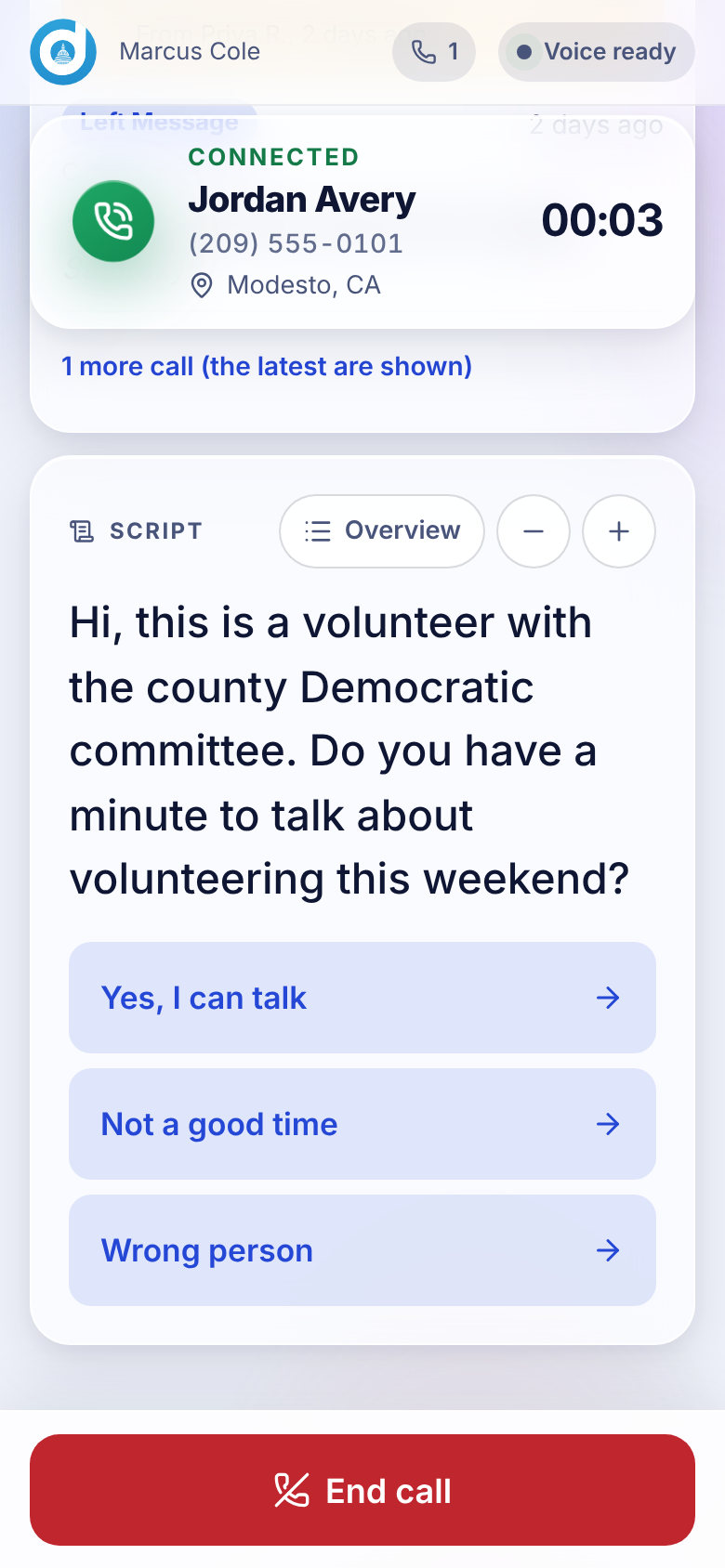
The script sits under the person's name on the call screen. It is made of sections. The first section is what you read when the person answers.

  • Response buttons. Below a section there may be buttons such as "Yes, I can talk" or "Not a good time." Tap the one that matches what the person said and the script moves to the next section. A section with no buttons ends the script.
  • Back. Went the wrong way? Tap Back to return to the previous section.
  • Overview. Lists every section so you can jump to any of them. Tap Close to return.
  • Text size. The minus and plus buttons make the script smaller or larger. The app remembers your choice.
Phone screen: The script panel with Overview and the text size buttons.
The script panel with Overview and the text size buttons.

Questions

I cannot tap the response buttons.

They unlock when the person picks up. Before that the screen says to read the opening while it rings.

The script is too small to read.

Tap the plus button beside Overview to make the text larger.

My script ended in the middle of the call. What now?

A section without response buttons ends the script. Tap Back or Overview to go to a different section. Tell your organizer if the script needs another section.

Who writes the script?

Organizers and admins, in the script editor. If you spot a mistake in it, tell your organizer.

For callers

The History card #

A short summary of earlier calls and shared notes about the person you are calling.

Under the name on the call screen, the History card tells you what happened before, so you do not ask the same question twice.

  • The last few calls. The result, how long ago, who made the call ("You" or a first name and last initial), and the note they wrote. It shows up to the five most recent calls and tells you if there are more.
  • Notes your organizers shared. Organizers can write private notes on a person. A note only appears here if the organizer ticked Show this note to callers. Up to three shared notes show, highlighted in yellow.

The card's heading says how many earlier calls it can see: No earlier calls, Called once, Called 3 times, or Called more than 5 times when there are more than it lists. If the card cannot load for any reason it simply does not appear, and the call goes on as normal.

Questions

Why do I not see my organizer's note about this person?

Organizer notes are private unless the organizer ticked Show this note to callers. Ask them to tick it if you should see it.

Why does it say "Called more than 5 times"?

The card lists the latest five calls. When the person has been called more often than that, it tells you there are more than it shows.

Can I edit what is on the History card?

No. It is built from saved results and shared notes. Add your own note when you save a result, and it will show for the next caller.

For callers

Saving the result #

What happened? The nine results, what each one does behind the scenes, notes and the "OK to text" tick.

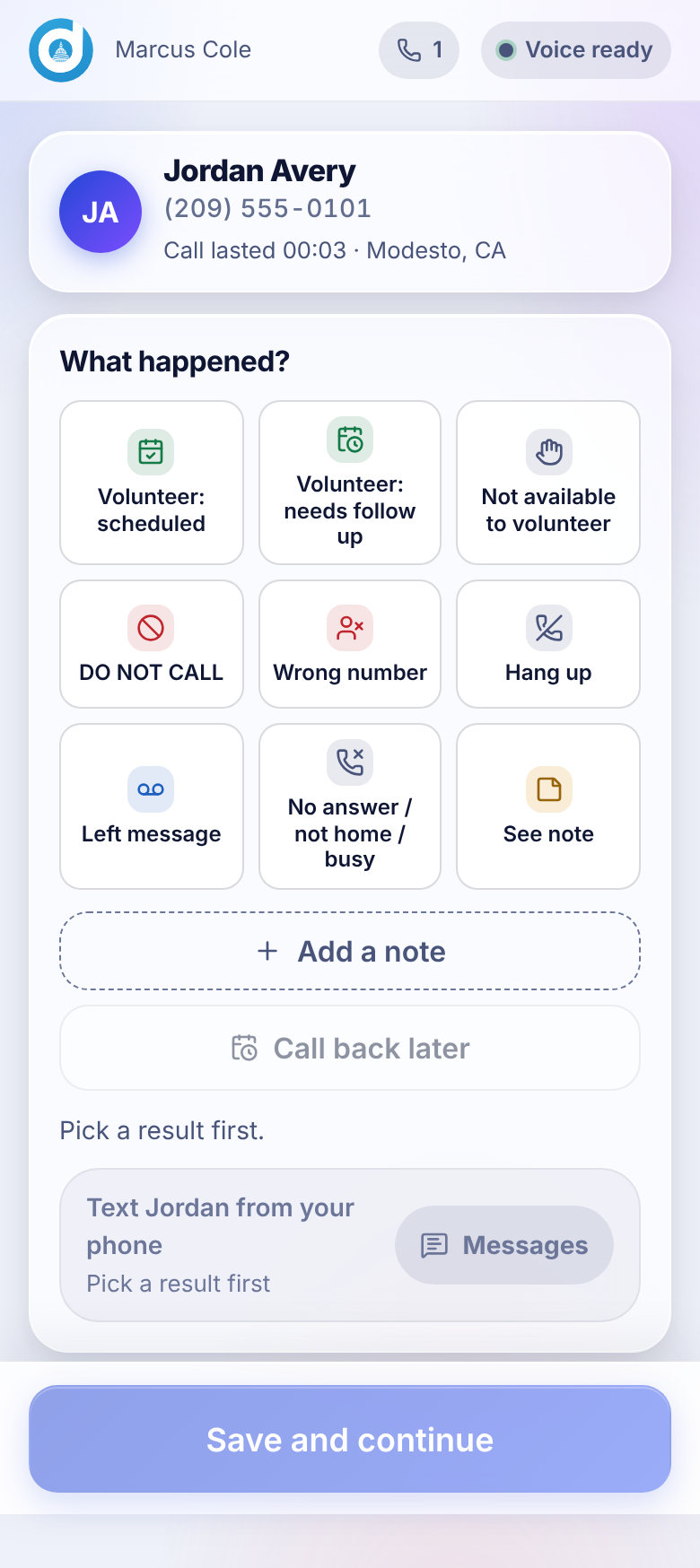
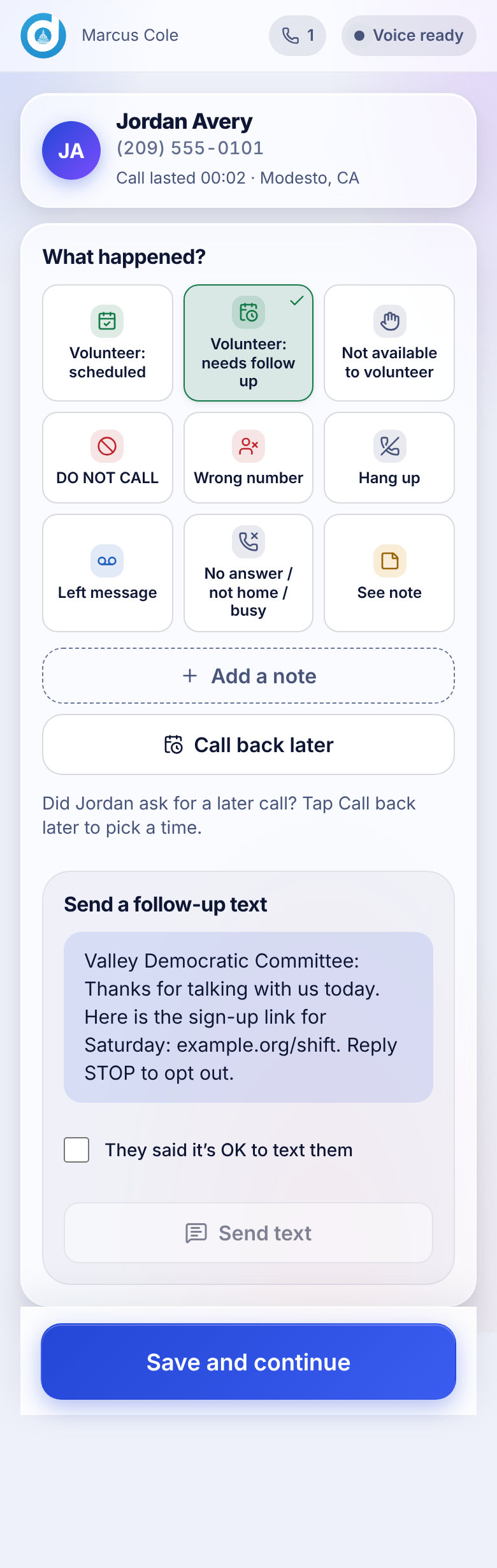
When the call ends you land on What happened? Pick one result, add a note if it helps, and tap Save and continue. A result is saved once, so pick carefully; ask your organizer if you saved the wrong one.

Phone screen: The nine results. Save and continue stays disabled until you pick one.
The nine results. Save and continue stays disabled until you pick one.
Phone screen: After a pick you can add a note, set a callback and, if texting is on, send a text.
After a pick you can add a note, set a callback and, if texting is on, send a text.
ResultUse it whenWhat the app does
Volunteer - ScheduledThey agreed to volunteer a specific shift.Counts as a volunteer recruited. The person's stage becomes Scheduled.
Volunteer - Needs Follow UpThey are interested but need another contact.The person's stage becomes Needs follow-up. You can set a callback.
Not available to volunteerThey cannot volunteer.Not called again by this operation. The stage becomes Declined for people who are new, being tried or awaiting follow-up.
DO NOT CALLThey asked not to be called.Suppressed right away. No operation in the organization will call or text this number.
Wrong numberThe number is not theirs.Suppressed right away.
Hang upThey hung up on you.Recorded. Not tried again.
Left messageYou reached voicemail and left a message.Recorded. The stage becomes Trying to reach. Not tried again by calling.
No answer / not home / busyNobody picked up, or they could not talk.The only result that sends the person back to the queue: after a 2-hour cooldown, for up to 3 tries in all. Fresh people come first.
See noteSomething does not fit the others.Recorded. Write what happened in the note so an organizer can follow up.

Notes

Tap Add a note to write what you learned. Notes go into the call record, show up for organizers in Reporting and on the person's page, and appear on the History card for the next caller. Keep notes factual and polite, since the organization may read them.

Callback

If the person asked for a call later, tap Call back later to pick a time. See Callbacks.

Texting

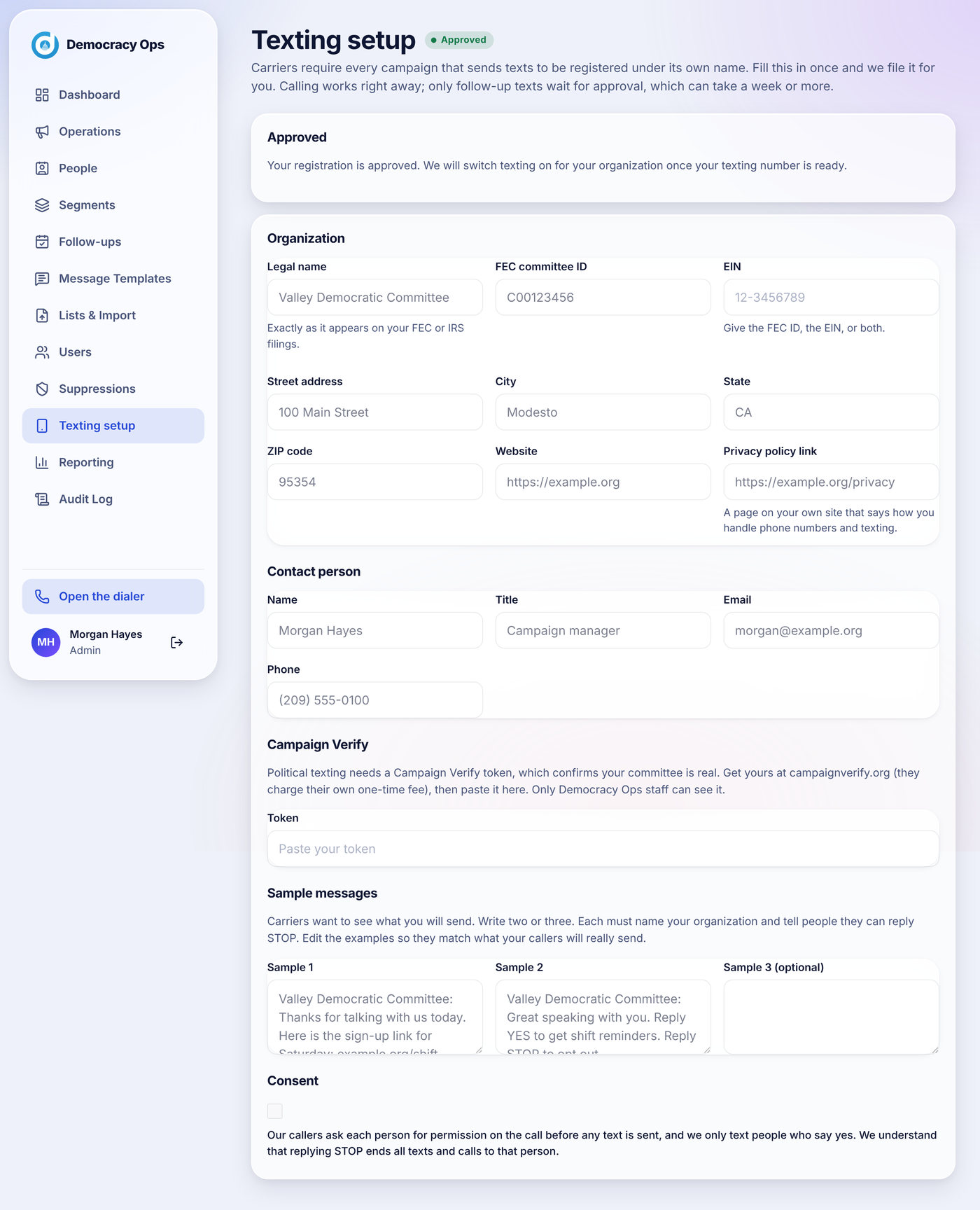
When your organization's texting is switched on for the operation, a Send a follow-up text panel appears for results that have an approved message. You must tick They said it's OK to text them first. Until texting is live, the screen offers Text from your phone instead, which opens your own messaging app. See Texting: what is live today.

After you save

You see Response saved and a count of calls this session. Tap Continue calling for the next person, Take a break to return to the Ready screen, or End session to finish.

Phone screen: After you save. Your rank on the leaderboard shows if it is on.
After you save. Your rank on the leaderboard shows if it is on.

Questions

I picked the wrong result. Can I change it?

Callers cannot edit a saved result. Tell your organizer, who can see the call in Reporting and add a correction in a note on the person.

What is the difference between "Left message" and "No answer"?

Use Left message only if you actually left a voicemail. Use No answer / not home / busy when nobody picked up and you did not leave a message, or when they could not talk. Only No answer puts the person back in the queue.

Someone said "take me off your list." Which result?

Choose DO NOT CALL. The number is suppressed immediately, for every operation in the organization.

Do I need to write a note every time?

No. Add one when it will help the next person: a preferred time, a language, a question they had.

What if I am not sure which result fits?

Pick See note and write what happened. An organizer will review it.

Why is Save and continue grayed out?

You have not picked a result yet. Tap one of the nine tiles.

For callers

Callbacks #

Set a time to call someone back, and what you see when a callback comes due.

If someone says "call me after dinner," set a callback so it does not get lost.

Setting a callback

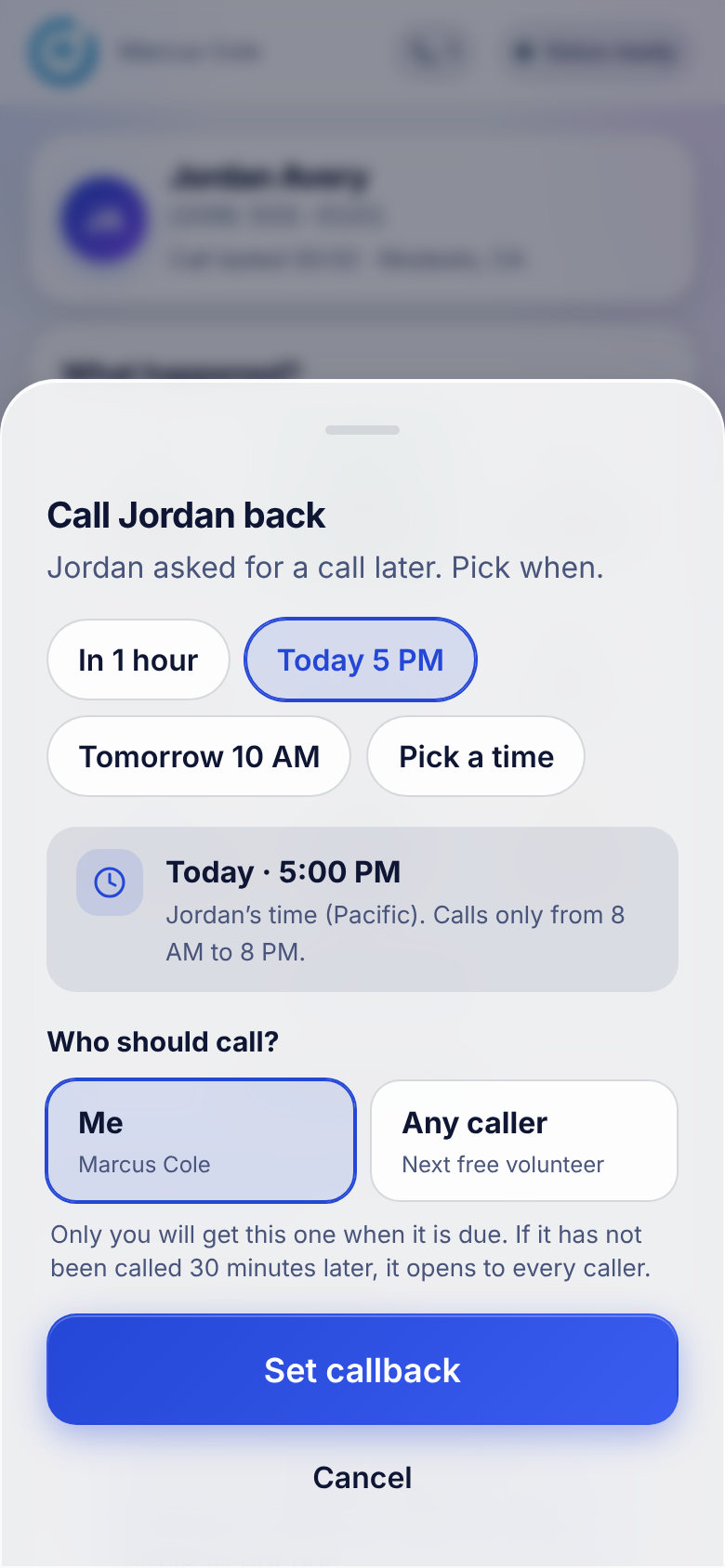
  1. On What happened?, pick the result and tap Call back later.
  2. Choose a time: In 1 hour, Today 5 PM, Tomorrow 10 AM, or Pick a time. Times move in 15-minute steps, are shown in the person's own time zone, and must be at least 5 minutes away and no more than 30 days ahead.
  3. Choose who should call: Me or Any caller. A callback set for you is held for you; if nobody has called 30 minutes after it was due, it opens up to every caller.
  4. Tap Set callback, then Save and continue.
Phone screen: The callback sheet. The time must fall inside calling hours where the person lives.
The callback sheet. The time must fall inside calling hours where the person lives.

The time has to be inside calling hours for the person's area (8 AM to 8 PM their time, unless your organization narrowed it). The sheet tells you if a time is too early or too late. A callback cannot be set after DO NOT CALL or Wrong number.

When a callback comes due

Due callbacks appear on the Ready screen under Callbacks due, with the person's first name and last initial, the time they asked for and how late it is. Tap Call now. You can also tap Skip callbacks, call the next person on the list.

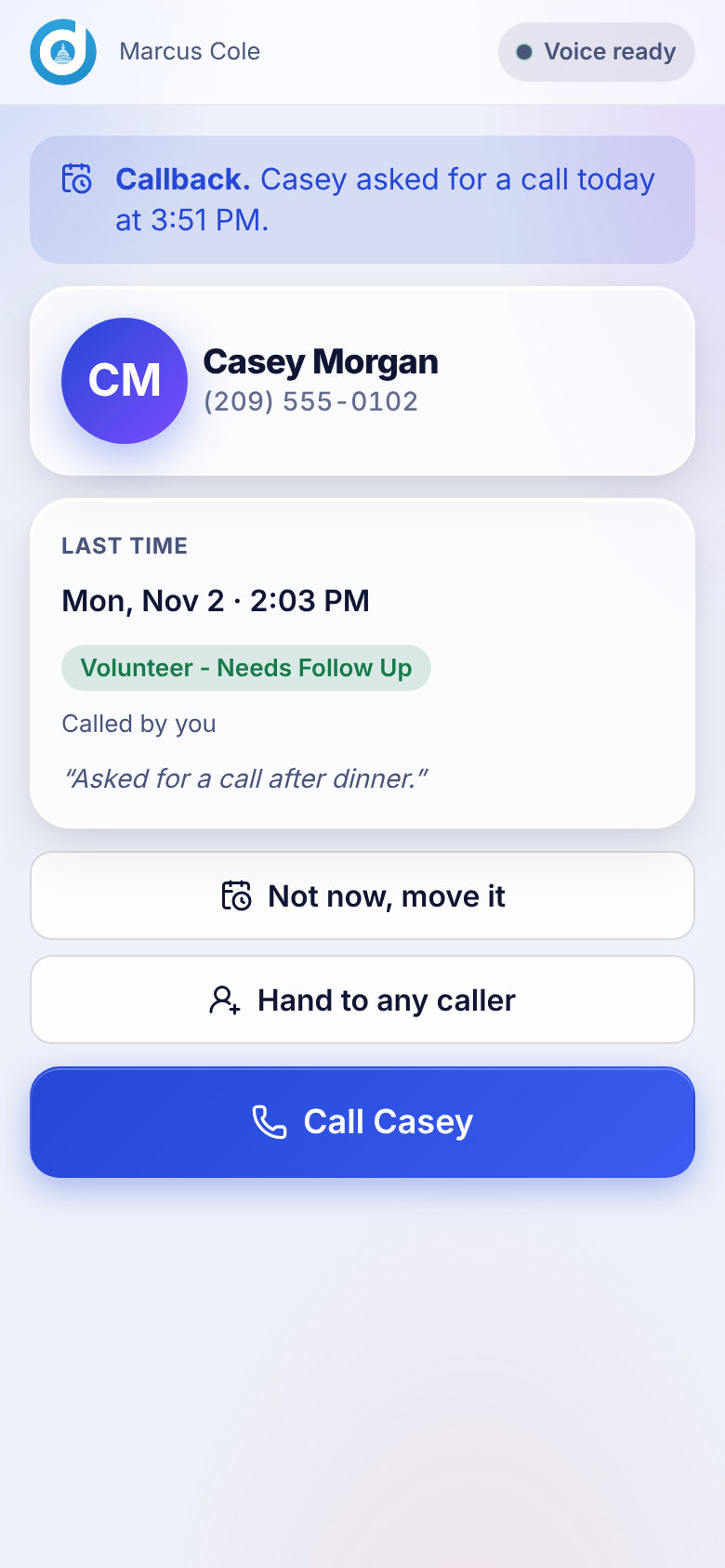
Tapping Call now opens Ready to call back: what they said last time, who called and when. From there:

  • Call (with their first name on the button) places the call.
  • Not now, move it picks a new time.
  • Hand to any caller releases it so any volunteer can take it.
Phone screen: The pre-call screen for a callback: the last call and what to say.
The pre-call screen for a callback: the last call and what to say.

Questions

A callback is due but I do not see it.

The list refreshes every 30 seconds and when you come back to the tab. A callback set for another caller stays with them for 30 minutes after it was due, then opens to everyone. Callbacks set for "Any caller" are open to everyone as soon as they are due.

Why can I not choose a time?

The sheet only allows times inside calling hours where the person lives, at least 5 minutes from now and up to 30 days ahead. Pick the next time it offers.

What happens if nobody calls back in time?

A callback you set for yourself opens up to every caller 30 minutes after it was due. It stays on the list until someone calls.

Does a callback replace the 2-hour wait for No answer?

Yes. A callback you set replaces the cooldown, so the person is offered when the time you chose comes up.

Someone told me to stop calling after I set a callback. What now?

Save a new result of DO NOT CALL for that person. The number is suppressed and cannot be called again.

For callers

The leaderboard #

Rankings by calls made and volunteers recruited, for today, this week and all time.

If your organizer switched it on, the Ready screen shows a Leaderboard. Switch between Today, This week and All time, and between Calls made and Volunteers recruited. After you save a result, a line shows where you stand, such as "You're #2 today."

  • It shows first names with a last initial and counts. Nothing else.
  • A volunteer recruited means a call saved as Volunteer - Scheduled.
  • Only callers who joined with a personal link are ranked. People on a shared link are not.
  • It updates after each call, not by the second.

Questions

Why am I not on the leaderboard?

Only personal-link callers are ranked. If you joined through a shared link, ask your organizer for a personal one.

Can I hide myself from it?

The leaderboard is a team setting that organizers switch on or off for an operation. If you would rather not be on it, ask your organizer.

Does the leaderboard show who I called?

No. It shows names and counts only.

For callers

Calling hours, limits and breaks #

Why the app sometimes says Outside calling hours, Time for a break or You are all caught up.

Three screens can replace the Ready screen. They are rules working as designed, not errors.

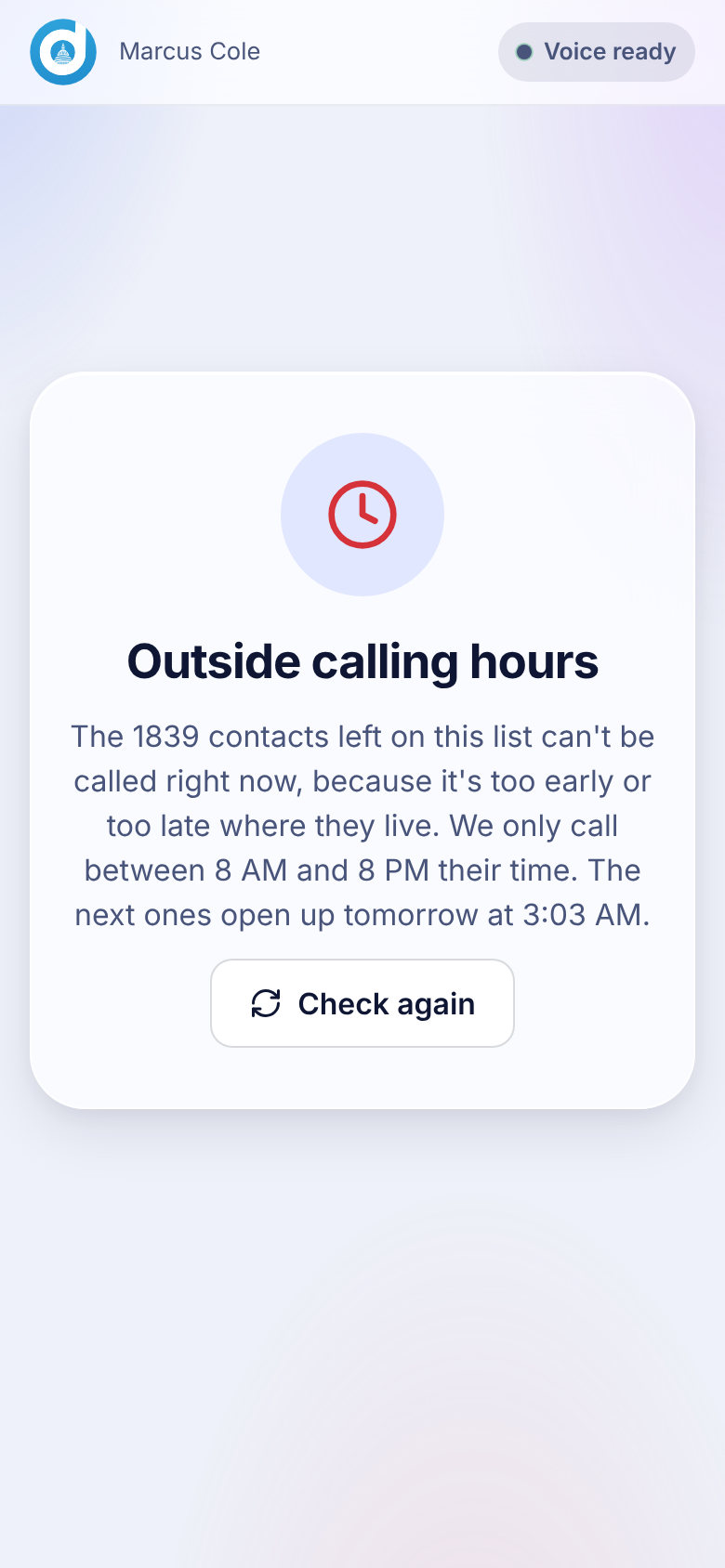
Phone screen: Outside calling hours.
Outside calling hours.
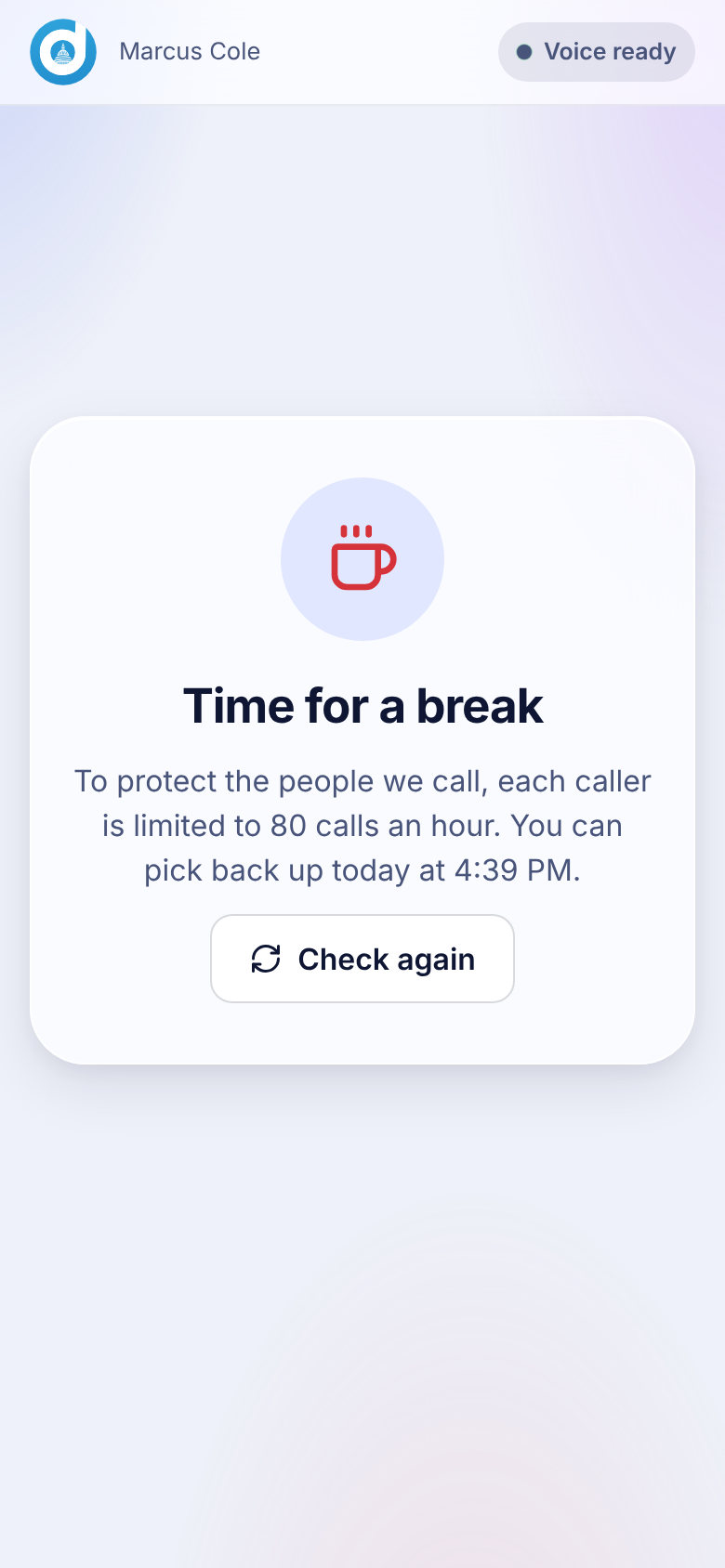
Phone screen: Time for a break.
Time for a break.
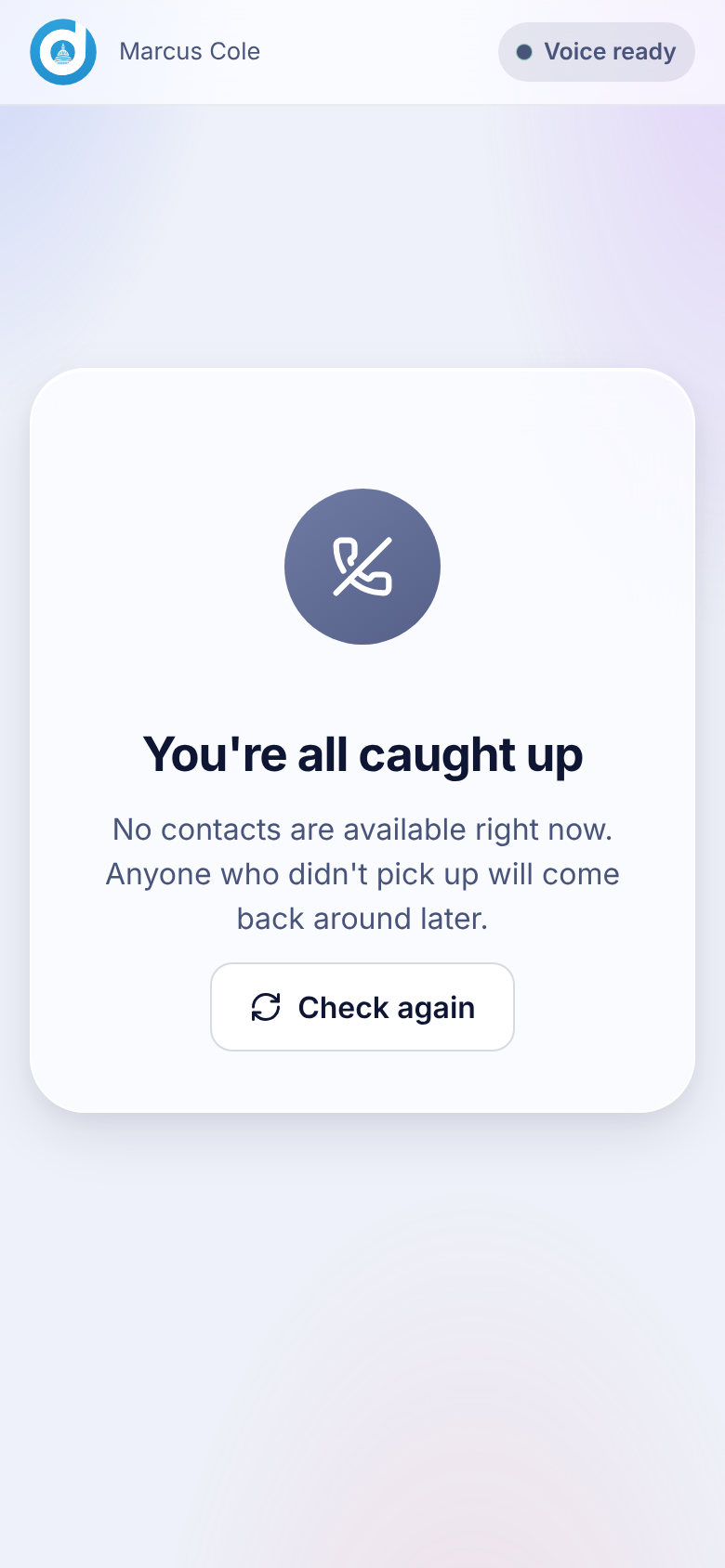
Phone screen: You're all caught up.
You're all caught up.

Outside calling hours

People can only be called between 8 AM and 8 PM in their own local time, worked out from the area code. Your organization may narrow those hours but never widen them past 8 AM to 9 PM. If the remaining people are all outside their hours, you see how many are left and when the next ones open up. Area codes that cover several time zones must be inside the hours in every one of them.

Time for a break

To protect the people being called, each caller is limited to 80 calls an hour and 250 calls a day (the day runs on Pacific time). A shared link also has a daily total for everyone who uses it. The screen tells you when you can pick back up. Organizers and admins are not limited.

You're all caught up

Nobody is available right now. People who did not pick up come back around after their 2-hour cooldown, so check again later.

On all three screens, tap Check again to look for the next person.

Questions

Why can't I call anyone, even though people are left?

They may all be outside calling hours, on a cooldown, or already held by another caller. The screen tells you which.

Can my organizer raise my hourly limit?

Organizations can adjust the limits within a fixed ceiling, but not beyond it. Ask your organizer. By default callers get 80 an hour and 250 a day.

Why 8 AM to 8 PM?

It is the standard window for calling, in the person's own time. The app enforces it for you so you do not have to work out time zones.

What does "This link is at its daily limit" mean?

Everyone using the same shared link has made as many calls as the link allows for today. Ask your organizer if you need more.

For callers

Ending your session #

Tap End session to see your totals for the day.

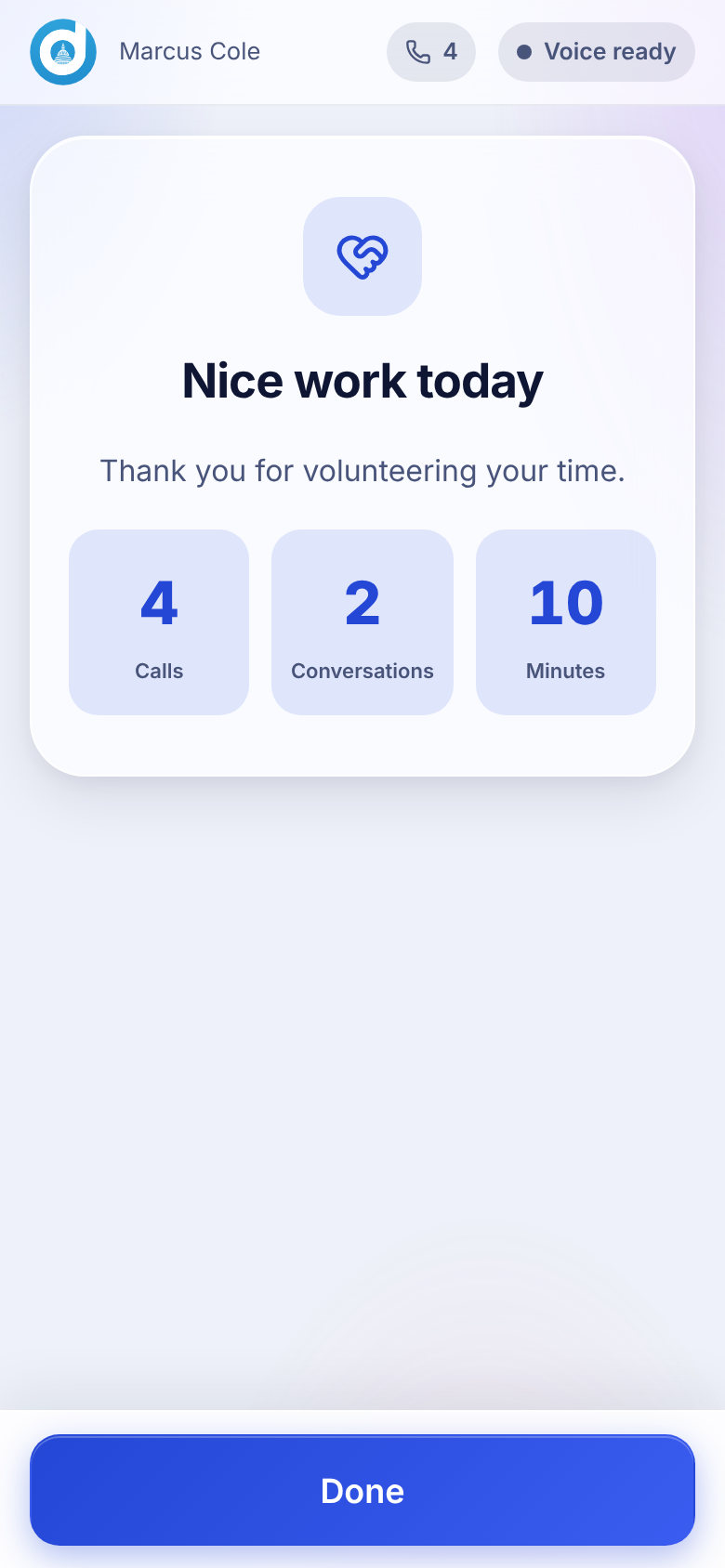
When you are done, tap End session (or End next to Start calling on the Ready screen). You see Nice work today with your totals: calls, conversations and minutes. Tap Done to finish.

Phone screen: The session summary.
The session summary.

Your results are already saved. Nothing is lost if you close the page. If you come back to the same device you are still signed in.

Questions

Do I have to end my session?

No. Everything is saved the moment you tap Save and continue. Ending the session just shows you the summary.

What counts as a "conversation" in the summary?

A call that connected to a person.

Does ending my session sign me out?

No. Your device stays signed in so you can come back with one tap.

Running your campaign

For organizers and org admins: operations, scripts, lists, the call queue, callers, suppressions, reporting and the audit log.

Running your campaign

The Dashboard #

Your live operations and the quickest ways to get callers going.

The Dashboard is the first page in the admin area. It shows your live operations and four quick actions:

  • New operation creates a calling effort.
  • Import a list takes you to Lists & import.
  • Invite callers takes you to Users, where caller links are made.
  • Reporting opens the numbers.
Under Live operations each operation has a card with its status, a Manage button for its settings and a Dial button that opens the calling screen for it, so organizers can make calls too. If you have none yet, the page tells you the order: create an operation, attach a contact list, then invite callers.

Screenshot: The Dashboard with two operations, one active and one paused.
Sample data The Dashboard with two operations, one active and one paused.

The left menu is the same on every admin page: Dashboard, Operations, People, Segments, Follow-ups, Message Templates, Lists & Import, Users, Suppressions, Texting setup, Reporting and Audit Log. Open the dialer at the bottom switches to the calling screen.

Questions

Why is my operation missing from the Dashboard?

The Dashboard is a shortcut to the operations you are working on. Every operation, whatever its status, is on the Operations page.

Can organizers make calls too?

Yes. Use Dial on an operation or Open the dialer in the menu. Organizers and admins are not subject to the hourly and daily call limits that callers have.

Running your campaign

Operations #

Create an operation, set its status, voicemail rule and follow-up texts, and see who is assigned.

An operation is one calling effort: a contact list, a script and a team of callers. Create one by typing a name on the Operations page and tapping Create operation. Each operation card shows its status and a Manage button for settings and an Edit script button.

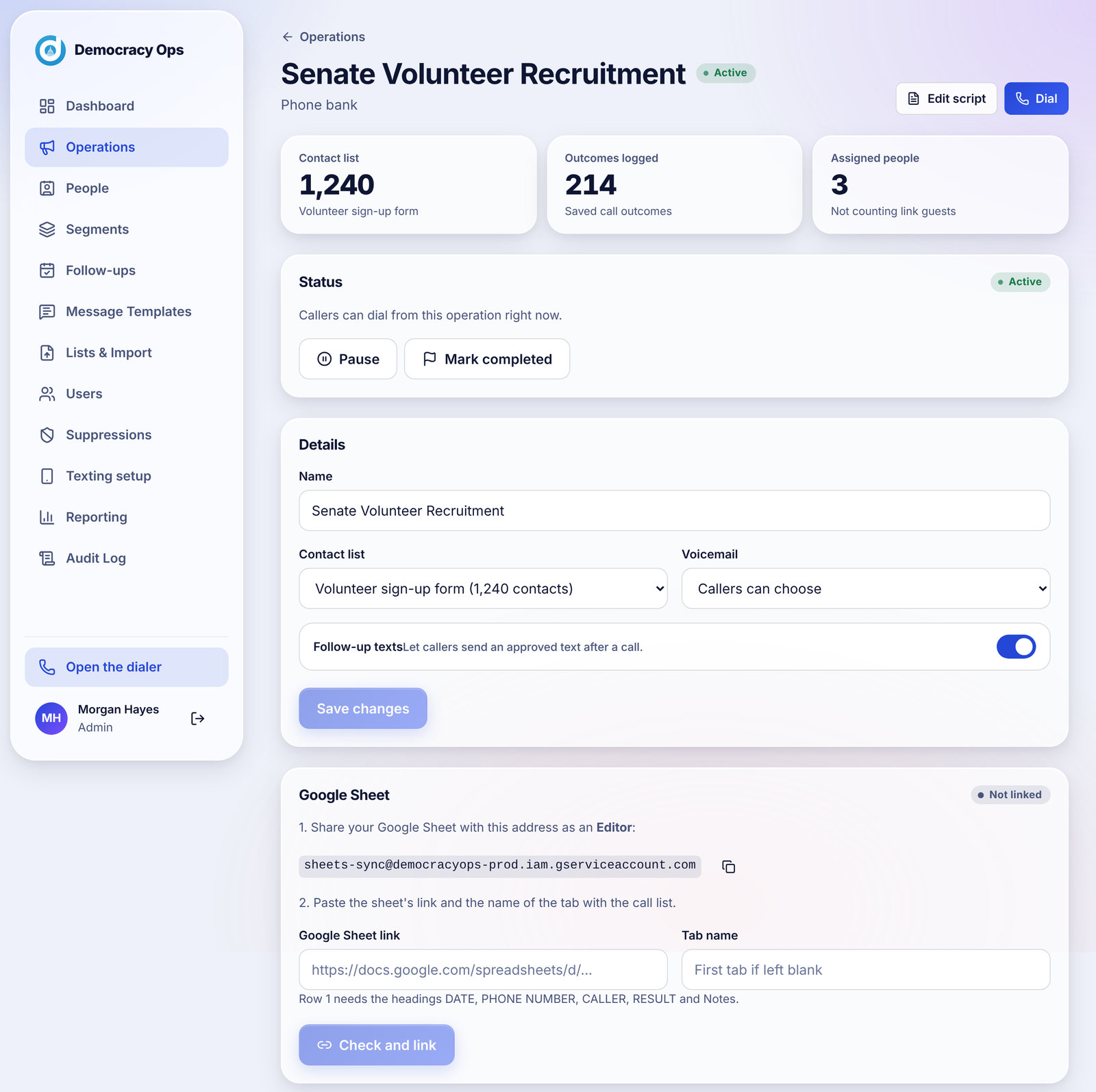
Screenshot: An operation's page: status, details, Google Sheet link, and (below) area code priority and assigned people.
Sample data An operation's page: status, details, Google Sheet link, and (below) area code priority and assigned people.

Status

Every operation moves through these statuses. You only see the buttons that make sense for where it is now.

StatusWhat it meansNext steps
DraftNew. Callers cannot get contacts until you start it.Start operation
ActiveCallers can dial from it right now.Pause or Mark completed
PausedNobody gets new contacts.Resume or Mark completed
CompletedCalling has ended.Archive when you are done
ArchivedLocked. It cannot be changed or reopened.None

Details

  • Name. Shown to your team and on reports.
  • Contact list. The imported list this operation calls through. The page shows how many people are on it.
  • Voicemail. Your team's rule for the operation: Never leave voicemail, Callers can choose (the starting setting) or Always leave voicemail. It is saved with the operation as your guidance to callers. The app does not leave messages for anyone; a caller who leaves one logs it as Left message.
  • Follow-up texts. A switch that lets callers send an approved text after a call. It only has an effect once your organization's texting is live. See Texting: what is live today.

Change anything, then tap Save changes.

Numbers and people

Three tiles at the top show the size of the contact list, how many outcomes have been logged, and how many people are assigned. Assigned people at the bottom lists the callers and organizers attached to this operation, with Remove and an Assign menu. People who join through a shared link are not counted here.

Questions

Why can't callers get anyone?

The most common cause is that the operation is still a draft, or is paused. Check its status on the Manage page. Other causes: everyone left is outside calling hours, or on a cooldown. See Who gets called, and when.

Can I reopen an archived operation?

No. Archiving is permanent: the app asks you to confirm it and says it cannot be changed or reopened. Mark an operation completed first, and archive it only when you are sure.

Can I use one list in two operations?

Yes. Each operation picks a contact list, and two can pick the same one. Each operation keeps its own queue and results. Suppressions are organization-wide, so a suppressed number is left out of both.

Does the voicemail setting stop callers from leaving a message?

It records your team's rule for the operation, so callers know what to do. Tell your callers what you decided in the script or in your briefing.

I changed a detail and nothing happened.

Tap Save changes. The button stays pale until something is different.

Running your campaign

The script editor #

Write sections and response buttons, publish versions, and see what callers will see.

Open the editor from Edit script on an operation. The page shows Live: version N next to the title when a script is published.

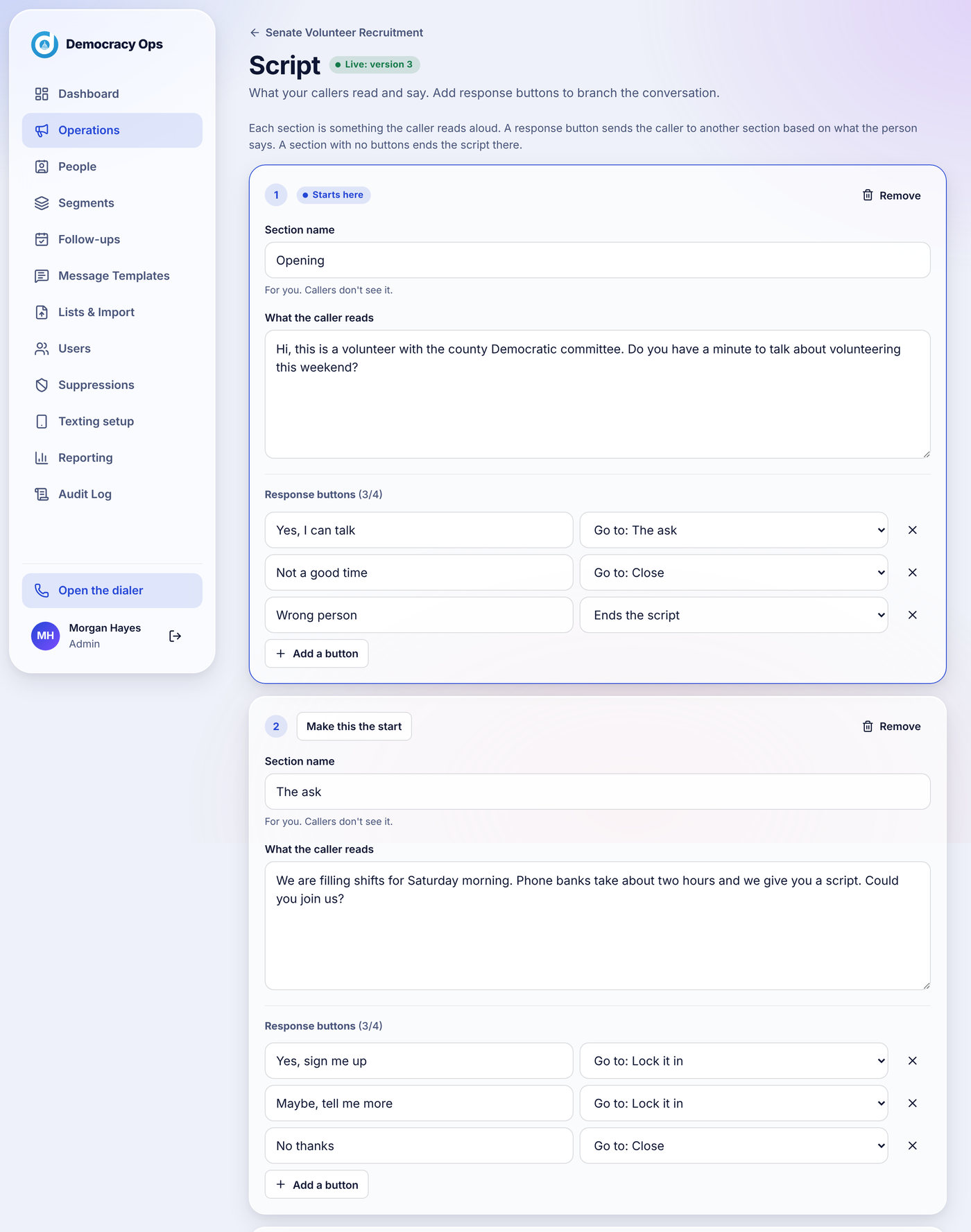
Screenshot: The editor. Each section has a name, what the caller reads, and up to four response buttons.
Sample data The editor. Each section has a name, what the caller reads, and up to four response buttons.

Sections

A section is one thing the caller reads aloud. Each has:

  • Section name. For you only. Callers do not see it, except in the Overview list.
  • What the caller reads. The text, shown exactly as you wrote it. It does not insert the person's name; callers see the name on the card above the script.
  • Response buttons. Up to four per section. Each has a label such as "Yes, I can talk" and a destination: Go to another section, or Ends the script.

The section marked Starts here is the first one callers read. Tap Make this the start on any section to change it. Use Add a section and Remove to shape the script. A section with no buttons ends the conversation at that point.

Publishing

Nothing callers see changes while you edit. When you are ready, tap Publish new version. The page says You have unpublished changes until you do and No changes to publish when there is nothing new. Every section needs something for the caller to read before you can publish.

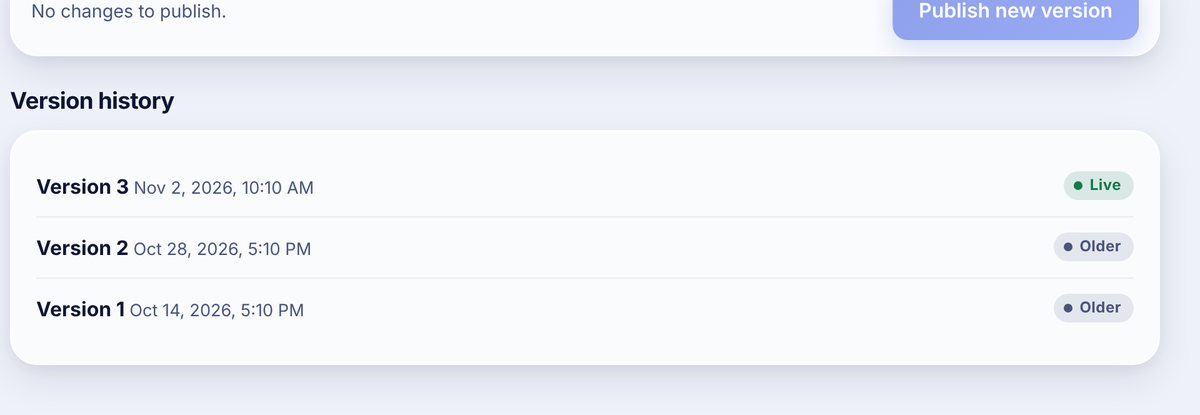
Screenshot: Publish, and the Version history below it. The live version has a green badge.
Sample data Publish, and the Version history below it. The live version has a green badge.

Callers get the new version on their next person. Version history lists every published version with its date and shows which one is live.

Questions

Callers see nothing where the script should be.

No script has been published yet. The editor says No script is published for this operation yet. Callers will have nothing to read until you publish one. Add a section and publish.

Can I insert the person's name?

Not automatically. Scripts are shown as written. Tell callers to say the name on their screen, or write the opening generically.

How many buttons can a section have?

Four.

Can I go back to an older script?

The history is a list: it shows when each version was published and which is live, but it does not reopen old versions. The editor always starts from the live version, so keep a copy of any text you may want back.

Running your campaign

Importing a list #

Upload a CSV, check each column, write where the list came from, and start the import.

Open Lists & import. You can import a spreadsheet of any size: large files upload straight to storage so they do not time out. Tap Blank CSV template if you want a file with the right headings to start from.

  1. Upload. Choose a CSV, or drop it on the page. Save a spreadsheet as CSV first (File, Download, Comma-separated values).
  2. Check the columns. The page shows a preview from the start of your file and guesses what each column is. Fix any guess that is wrong: your choices apply to the whole file, not just the rows you see. The choices are First name, Last name, Phone number (primary), Phone number (2nd), Email, City / locality, Keep as extra field and Don't import this column. You must pick one column as Phone number (primary).
  3. Name the list and write where this list came from. The second one is required. It is kept with the list as your record of authorization: where the numbers came from and why your organization may contact them.
  4. Start import. Progress updates live. A very large list can take a while, and you can leave the page and come back.
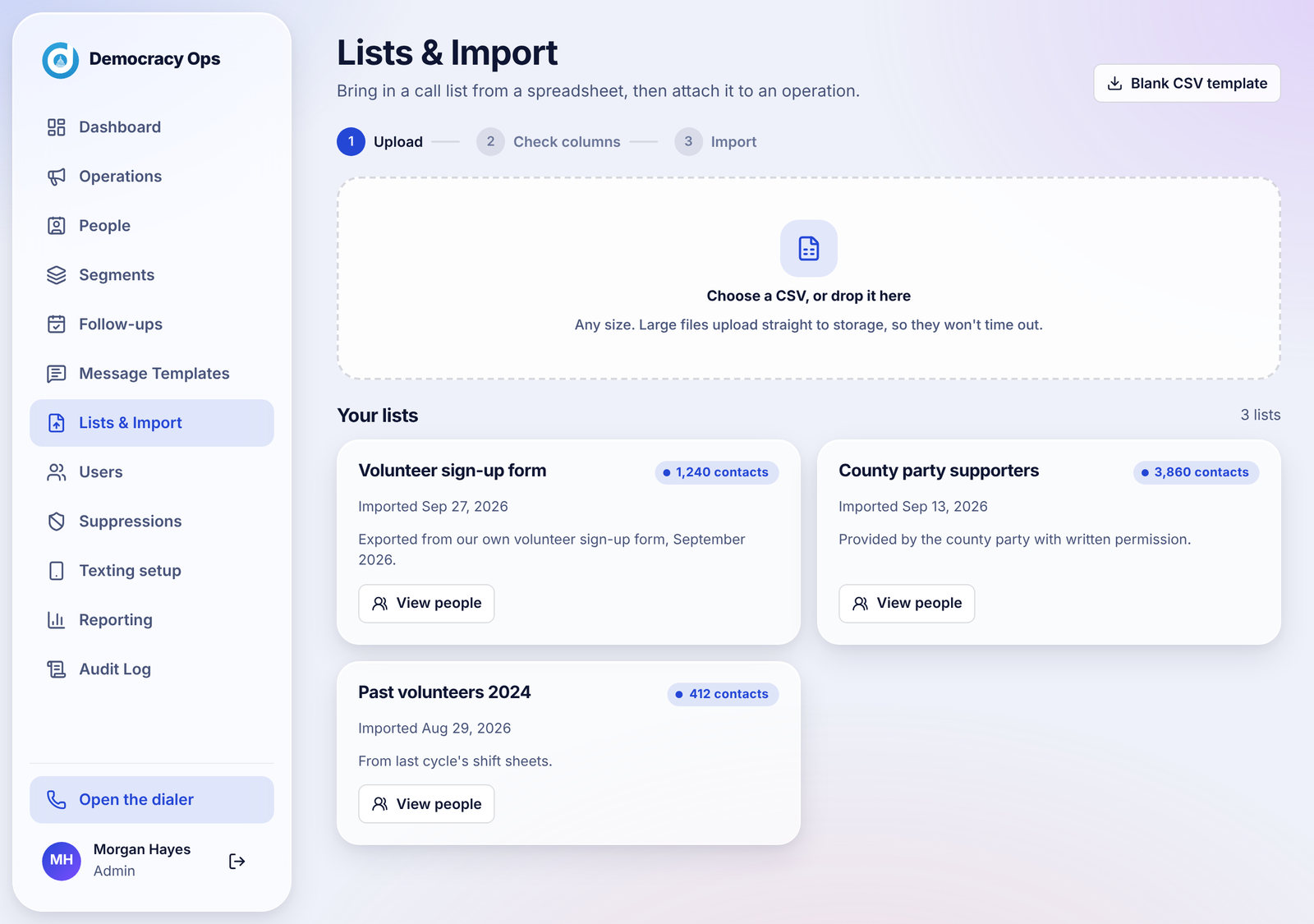
Screenshot: Lists & import: upload, then your existing lists with how many people each has.
Sample data Lists & import: upload, then your existing lists with how many people each has.

When it finishes you see Import complete with how many people were added and how many duplicates were skipped. Tap View people to see them in People, or Import another list. Imported people start in the New stage; anyone who already exists is never reset.

Questions

What counts as a duplicate?

A phone number that is already in your organization. It is skipped, not added twice, and the existing person keeps their stage, tags and history.

Why do I have to write where the list came from?

It is your record that the organization is authorized to contact these people. It is stored with the list and cannot be skipped.

My file was rejected or the import stopped.

Check that you chose a phone column and that the file is a CSV. If an import did not finish, run it again: it adds what is missing and skips what is there. The page tells you when an import did not finish.

Can I import numbers from outside the U.S.?

The calling rules and time zones are built around U.S. and Canadian area codes. Numbers without one are always called last and cannot be sorted by area code.

Can I delete a list?

The Lists page does not have a delete button. If a list was a mistake, email us at and tell us which one.

Running your campaign

Who gets called, and when #

The rules the app follows to pick the next person: fresh people first, cooldowns, retries, holds and calling hours.

When a caller taps Start calling, the app picks one person using these rules, in this order. You do not have to manage the queue by hand.

  1. Suppressed numbers are never offered. Do Not Call, Wrong Number and STOP replies are checked on the server before every call.
  2. Calling hours. A person is offered only between 8 AM and 8 PM in their own local time (see below).
  3. Fresh people come before retries. Someone who has never been called goes ahead of someone who did not pick up last time.
  4. Area code order. If you ranked area codes, people in the first code are called until everyone there has been tried, then the second, and so on. See Area code priority.
  5. One caller at a time. A person who is given to a caller is held for them for 10 minutes so nobody else rings them.

Who is called again

Only the result No answer / not home / busy puts a person back in the queue. They are offered again after a 2-hour cooldown, up to 3 attempts in all. Every other result is final for that operation. A callback you set replaces the cooldown.

If a caller dials someone but never saves a result (the browser closes, say), the person is held for 3 hours before they can be offered again, so they are not called twice in a row.

Calling hours

The window is 8 AM to 8 PM in the person's time zone, worked out from the area code. An organization can narrow it but never widen it past 8 AM to 9 PM. An area code that spans several time zones must be inside the hours in every one of them. If the app does not know an area code it treats it as covering Eastern to Pacific, so a person is never called too early or too late.

Questions

Why was the same person not offered again right away?

Either a result other than No answer was saved (those are final), or it has not been 2 hours since the last try.

Someone was called three times and never picked up. Will they be tried again?

No. After 3 attempts they are done for that operation.

Why do callers say "Outside calling hours" when there are plenty of people left?

Everyone who is left is outside 8 AM to 8 PM where they live, or is on a cooldown. The screen shows when the next people open up.

Can I let callers call earlier or later?

You can narrow the hours for your organization but not widen them past the 8 AM to 9 PM limit.

Can two callers get the same person?

No. Each person is held for one caller at a time.

How do I reach the people closest to me first?

Rank their area codes on the operation's page. See Area code priority.

Running your campaign

Area code priority #

Rank area codes so callers reach the people closest to you first.

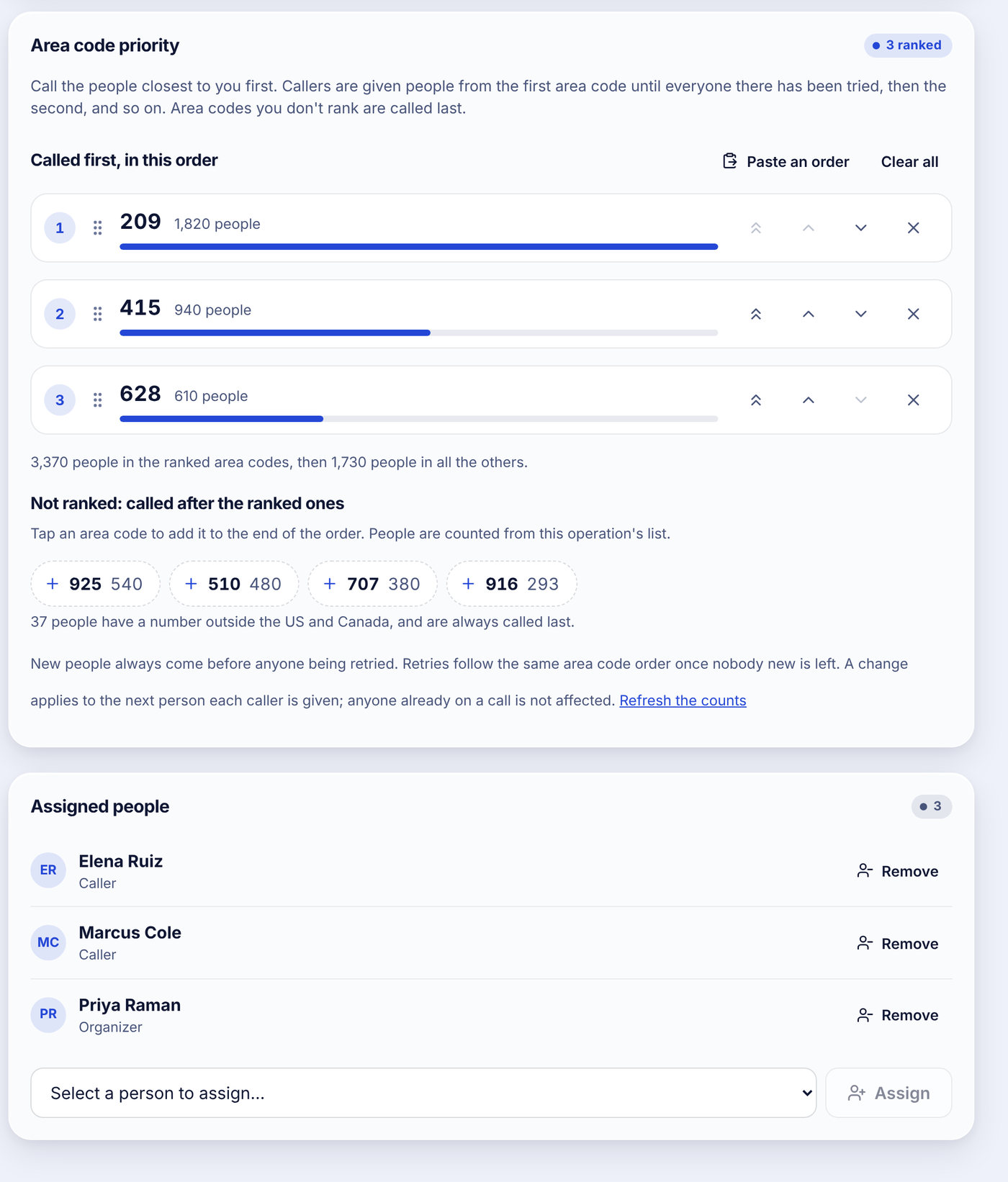
By default people are offered in the order they were imported. If you want volunteers to start with people nearest to you, rank the area codes on the operation's page under Area code priority.

Screenshot: Three area codes ranked. The codes below the ranked ones are called after them.
Sample data Three area codes ranked. The codes below the ranked ones are called after them.
  • Called first, in this order. Drag the handle, or use the arrows, to reorder. The x removes a code. Each row shows how many people are on the list in that area code.
  • Not ranked. Tap a code to add it to the end of the order. Codes you do not rank are called last.
  • Paste an order. Paste a list of codes to set the order in one go. Clear all goes back to the usual order.
  • Counts. The page counts the people in each code from the operation's list. Tap Refresh the counts after the list changes.

You can rank up to 60 area codes. People whose number does not have a U.S. or Canadian area code are always called last.

Questions

How many area codes can I rank?

Up to 60.

Will changing the order disrupt people who are on a call?

No. A change applies to the next person each caller is given.

Why does it say some people are called last?

Their number is outside the U.S. and Canada, so it has no area code to rank.

Can I rank by city or zip code?

No, only by area code.

Running your campaign

Users and caller links #

Invite callers with a link, add organizers and admins, and manage roles.

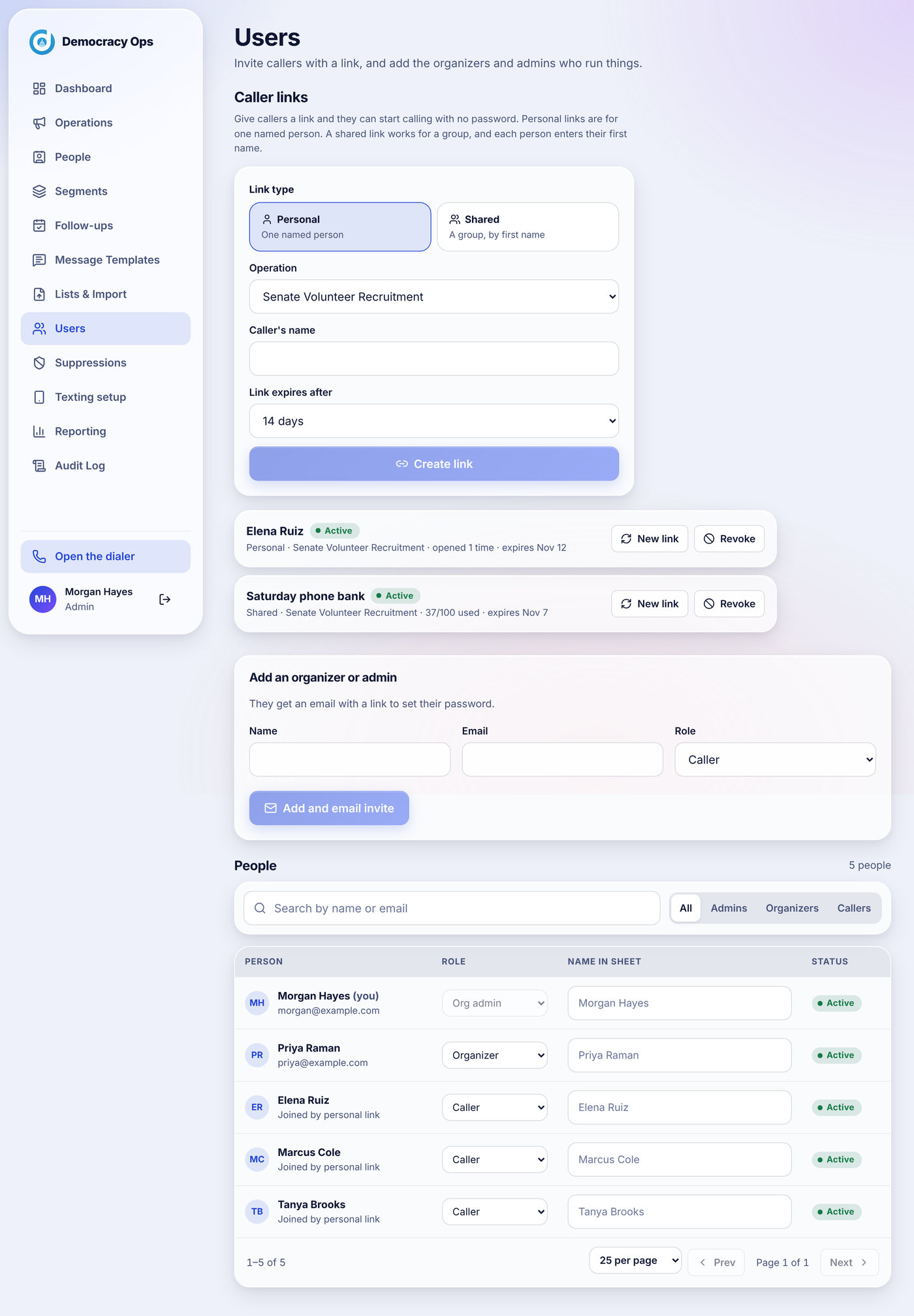
The Users page has two jobs: giving volunteers a way to call, and managing the people who run things.

Screenshot: Users: create a caller link at the top, add an organizer or admin, then the list of everyone in the organization.
Sample data Users: create a caller link at the top, add an organizer or admin, then the list of everyone in the organization.

Caller links

A calling link lets a volunteer start calling with no password. Choose a type:

SettingPersonal linkShared link
ForOne named personA group; each person enters their first name
Starting length14 days7 days (up to 90 days)
Who can joinThe one named personUp to the limit you set under Most people who can join: 100 to start, up to 1,000
PasscodeNoOptional. Tell people the passcode separately. Too many wrong tries lock it
LabelThe caller's nameSomething like "Saturday phone bank"

Pick the operation, fill in the fields and tap Create link. The link is shown once, so copy it right away. You can also email it from the same panel. After that the page lists each link with its status, how often it was used and when it expires.

  • New link issues a replacement. The old link stops working immediately, and anyone already signed in stays signed in.
  • Revoke turns a link off for good. Anyone who joined with it is signed out right away and cannot call anymore.

Joining is also rate limited: a shared link allows 50 new joins in any 10 minutes, so a leaked link cannot be flooded.

Organizers and admins

Under Add an organizer or admin, enter their name and email, choose a role, and tap Add and email invite. They get an email with a link to set a password. Only an org admin can do this.

The people list

Everyone in the organization is listed with their role, a Name in sheet and status. Filter by role or search by name or email. Each row shows how a caller joined, such as Joined by personal link.

  • Change a role with the role menu. A person who joined with a link has no email or password, so you enter their email first and we send them a link to set a password; their calling history stays with them.
  • Name in sheet is how this person appears in your Google Sheet's CALLER column and in the past-calls import. Give two people with the same name different values here.

Questions

I lost a link I created. Can I see it again?

No. A link is shown only when you create it. Use New link to issue a replacement; the old one stops working.

A shared link got posted publicly. What do I do?

Tap Revoke on it, then create a new link with a passcode. Revoking signs out everyone who joined with it.

Can I email the link from the app?

Yes, there is an option to email the link to someone when you create it, and you can email a link later too.

Why is a caller not on the leaderboard?

Only callers who joined with a personal link are ranked. Give them a personal link instead of the shared one.

Two volunteers have the same first name. Does that cause a problem?

They are counted separately, and the leaderboard shows more of the name to tell them apart. Give each a different Name in sheet so the past-calls import does not have to ask which one is which.

How do I stop a caller from calling?

Revoke the link they joined with. They are signed out right away and cannot call anymore.

Running your campaign

Suppressions (Do Not Call) #

The list of numbers that must never be called or texted, how numbers get on it and who can remove them.

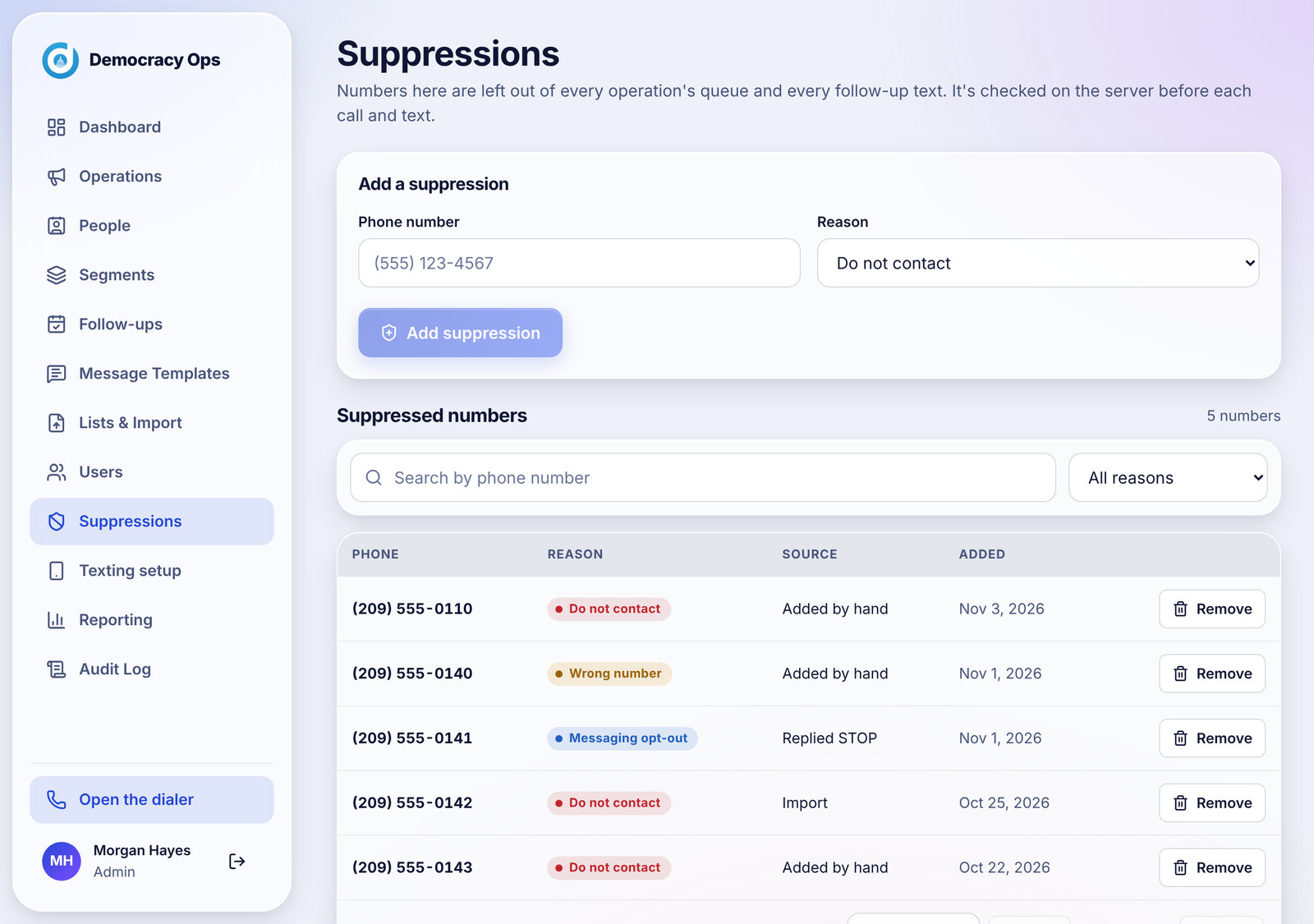
A suppression is a number that is left out of every operation's queue and every follow-up text. The check happens on the server before each call and text, so it cannot be skipped by a caller.

Screenshot: Suppressions: add a number by hand, search, filter by reason, and see the source and date.
Sample data Suppressions: add a number by hand, search, filter by reason, and see the source and date.

How a number gets on the list

  • A caller saves DO NOT CALL (reason Do not contact).
  • A caller saves Wrong number (reason Wrong number).
  • The person replies STOP to a text (reason Messaging opt-out, source Replied STOP).
  • An organizer or admin adds it by hand: enter the phone number, choose a reason and tap Add suppression.

Removing one

Only an org admin can remove a suppression, and the app asks you to confirm. The server enforces this too, not only the screen. If someone asked not to be contacted, think carefully before removing them.

Each row shows the number, the reason, the source (for example Added by hand or Replied STOP) and the date. Use the search box and the reason filter to find a number.

Questions

Is a suppression for one operation or all of them?

For the whole organization. A number suppressed in one operation is not called or texted in any other.

Someone asked us to stop and I want to add them before a caller does.

Add them on this page with the reason Do not contact.

A person wants to be called again. How?

An org admin can remove the suppression. Only do this if the person asked you to.

Does a STOP reply also stop calls?

Yes. The number is suppressed, which leaves it out of calls and texts.

Why can organizers not remove suppressions?

It is a safeguard. Removing a Do Not Call is a decision for an org admin.

Running your campaign

Reporting #

Outcomes, calls by caller, recent calls and downloads for each operation.

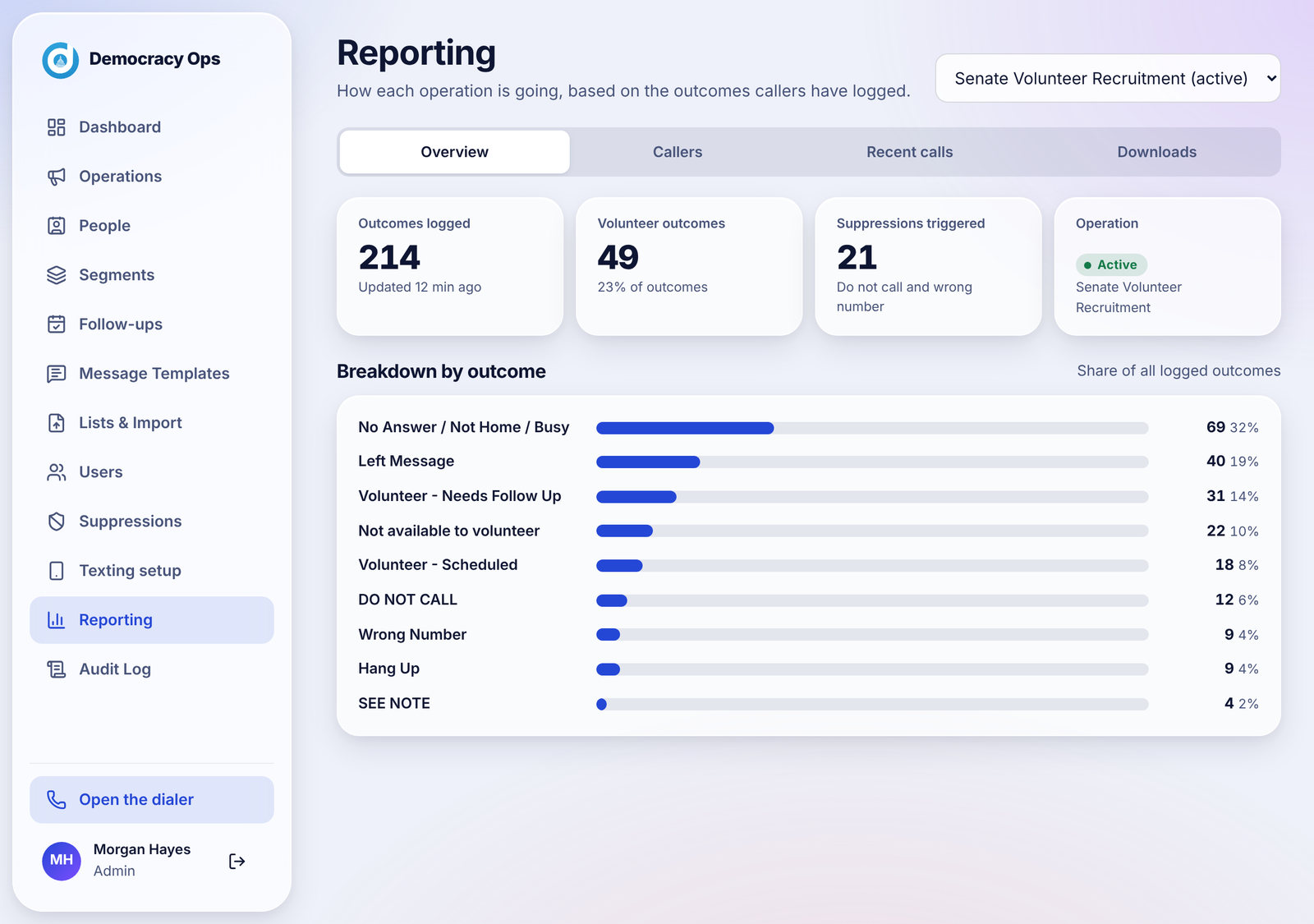
Open Reporting and pick an operation from the menu at the top right. Four tabs show the numbers.
Overview

Tiles for Outcomes logged, Volunteer outcomes (with the share of all outcomes), Suppressions triggered (Do Not Call and Wrong Number) and the operation's status, then a Breakdown by outcome with the share each result makes up. Numbers appear as soon as callers save their first result.

Screenshot: The Overview tab: tiles, then the breakdown by outcome.
Sample data The Overview tab: tiles, then the breakdown by outcome.

Callers

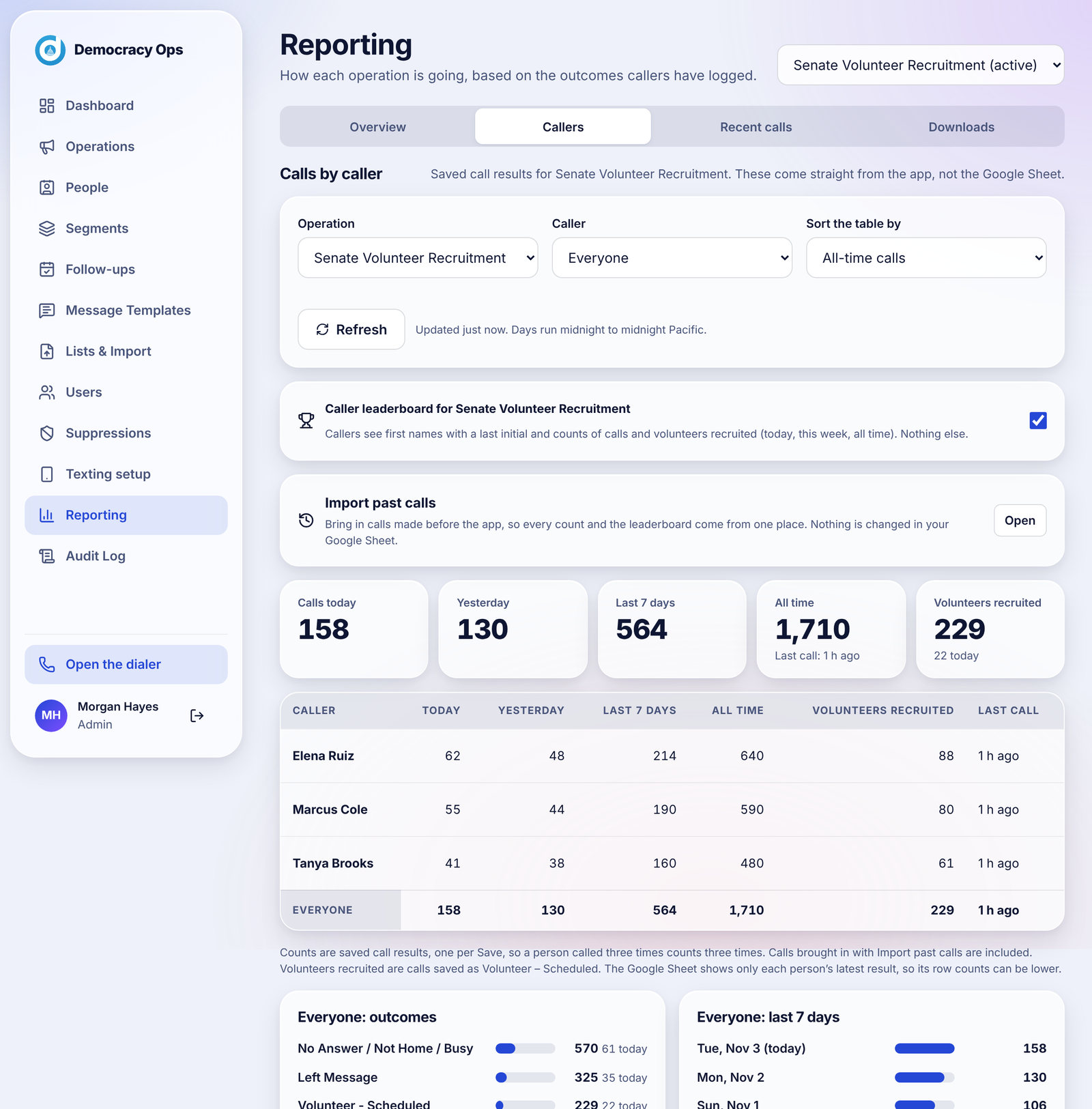
Calls by caller counts the saved results for each caller: today, yesterday, the last 7 days and all time, plus volunteers recruited and the time of their last call. Filter by operation or caller and choose how to sort. These counts come straight from the app, not from a Google Sheet. A call is counted once for every Save, so a person called three times counts three times. Days run midnight to midnight Pacific.

This tab also holds the caller leaderboard switch for the operation and Import past calls (see below).

Screenshot: Calls by caller, with the leaderboard switch and Import past calls above the table.
Sample data Calls by caller, with the leaderboard switch and Import past calls above the table.

Recent calls

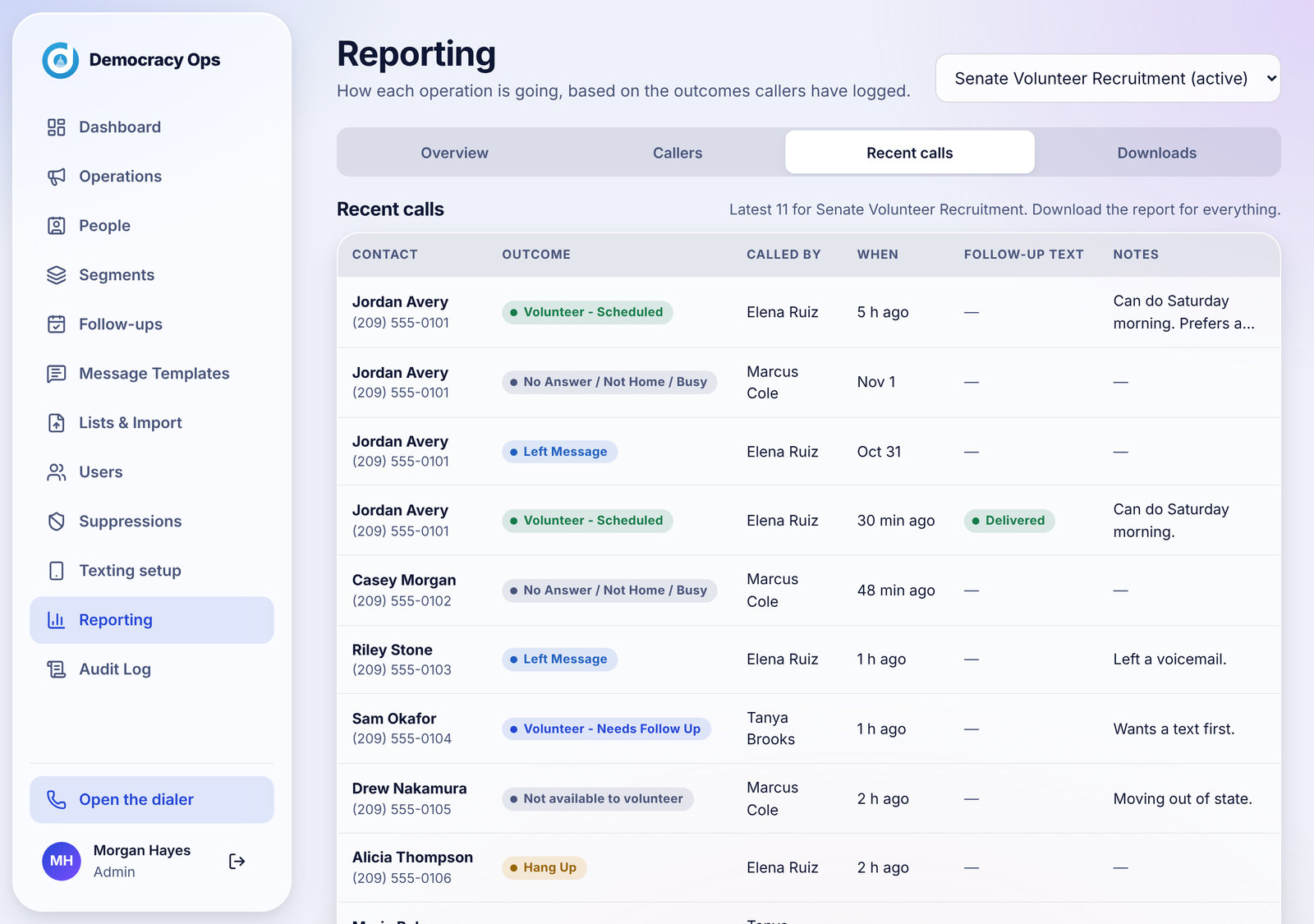
The latest calls for the operation: the person, the outcome, who called, when, the status of any follow-up text and the caller's note.

Screenshot: Recent calls. A green Delivered badge shows when a follow-up text was delivered.
Sample data Recent calls. A green Delivered badge shows when a follow-up text was delivered.

Downloads

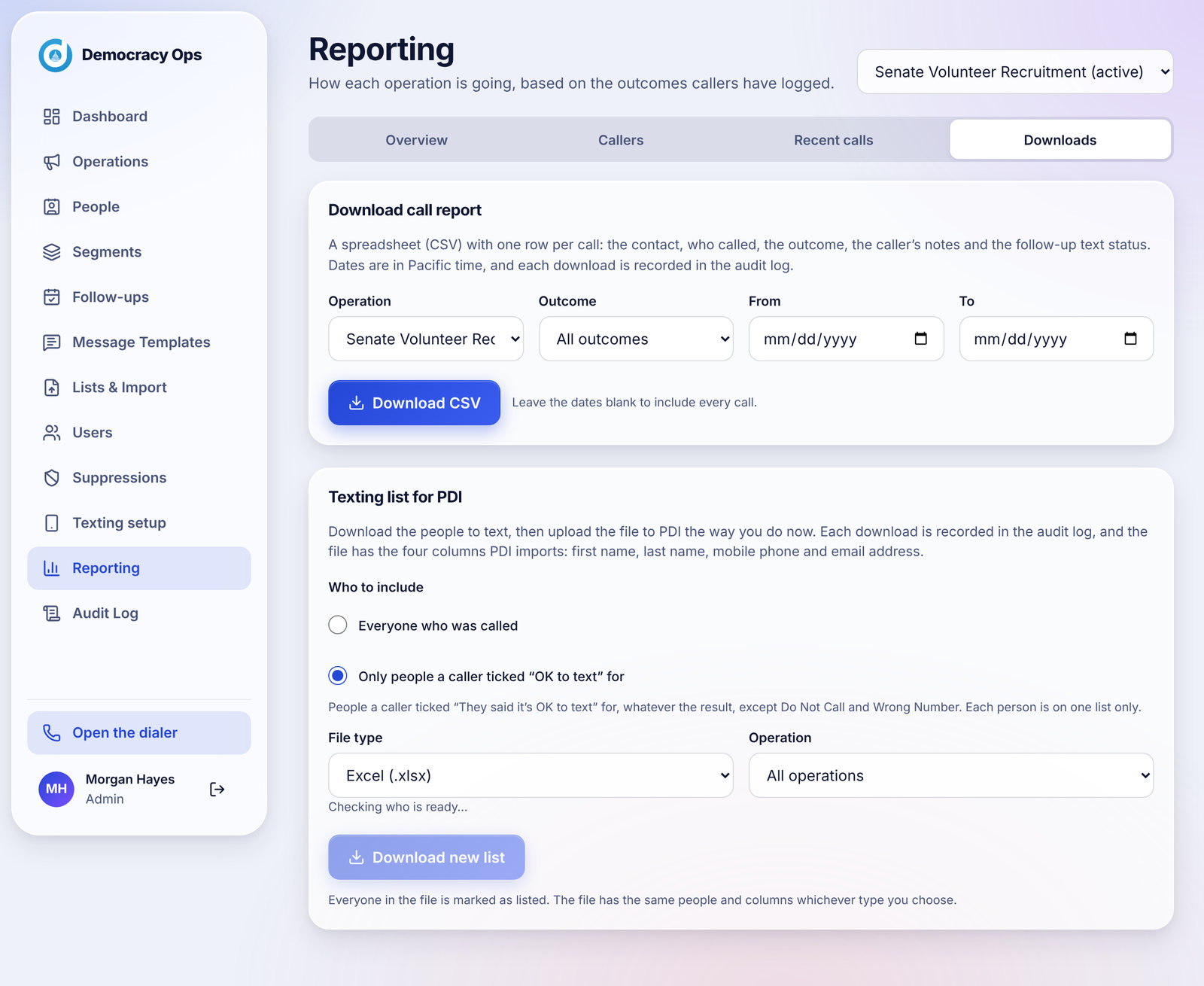
Download call report makes a CSV with one row per call: the contact, who called, the outcome, the notes and the follow-up text status. Choose an operation, an outcome and a date range (leave the dates blank for every call). Dates are in Pacific time. If there are more calls than fit in one file the newest are included and the page tells you to narrow the dates for the rest. Each download is recorded in the Audit log.

The same tab has the Texting list for PDI.

Screenshot: Downloads: the call report and the texting list for PDI.
Sample data Downloads: the call report and the texting list for PDI.

Questions

The numbers are not changing.

The Overview updates when callers save results and shows when it last refreshed ("Updated 12 min ago"). The Callers tab has a Refresh button.

Why do the Reporting numbers not match my Google Sheet?

The Sheet keeps only each person's latest result, so its row count can be lower than the app's. Reporting counts every saved call.

What does "Volunteers recruited" mean?

Calls saved as Volunteer - Scheduled.

Can I get the data out?

Yes. Download call report in the Downloads tab makes a CSV. Each download is logged.

Can I see what one caller did?

Yes, filter the Callers tab by caller, or use the Recent calls tab.

Running your campaign

Google Sheet (optional) #

Copy call results to a Google Sheet, and what the headings must be.

Linking a Google Sheet is optional. Everything works without one, and Reporting never depends on it. If your team likes working in a sheet, an org admin can link one to an operation and the app will copy each call's result into it.

  1. On the operation's page, find Google Sheet. Copy the email address shown there.
  2. In Google Sheets, share your sheet with that address as an Editor.
  3. Paste the sheet's link, and the name of the tab with the call list (the first tab if you leave it blank).
  4. Row 1 needs the headings DATE, PHONE NUMBER, CALLER, RESULT and Notes.
  5. Tap Check and link.

Once linked, results are copied as callers save them. Sync past calls sends any results saved before you linked or ones that failed earlier, and is safe to press more than once. To stop, unlink the sheet on the same card; nothing in your sheet is changed.

Questions

It says only an org admin can link a sheet.

Yes. Ask an org admin to do it, or to make you one.

Could the app change my sheet by accident?

It only writes call results into the sheet you linked, using the headings above. Unlinking leaves everything in your sheet exactly as it is.

The sheet has fewer rows than Reporting.

The Sheet shows each person's latest result. Reporting counts every saved call, so a person called three times counts three times there.

Why would a result not appear in the sheet?

If it failed to copy, press Sync past calls. It sends anything that is missing and is safe to repeat.

Running your campaign

Importing past calls #

Bring in calls made before the app so counts and the leaderboard come from one place.

If your team made calls before using Democracy Ops, you can bring them in so every count and the leaderboard come from one place. Open Reporting, then Callers, then Import past calls.

  1. Choose a CSV file (save your sheet with File, Download, Comma-separated values), or choose Read the linked Sheet to read this operation's sheet directly. The first row needs the headings DATE, PHONE NUMBER, CALLER and RESULT.
  2. Review the preview. Rows that cannot be used are listed with the reason they were skipped.
  3. If some results are not recognized, choose what each one means or skip those rows. They are not imported until you choose.
  4. Match caller names to people in your organization. A name that matches one person counts toward that person; everyone else is kept as a Past caller (no login) under the name in the sheet.
  5. Confirm. People who were already called are taken out of the queue so they are not called again.

A Sheet keeps only each person's latest result, so earlier calls to the same person are not in it. Nothing is changed in your Google Sheet, and running the import again only adds what is missing.

Questions

Will imported people be called again?

The confirmation tells you how many are taken out of the queue. People who already have a result are not given to callers again.

Do imported calls count on the leaderboard?

Yes. They are included in the counts and the leaderboard.

What if I import the same file twice?

The second time says Nothing new to add. Those calls were already imported.

Running your campaign

The Audit log #

A record of sensitive actions: who did what and when. Org admins only.

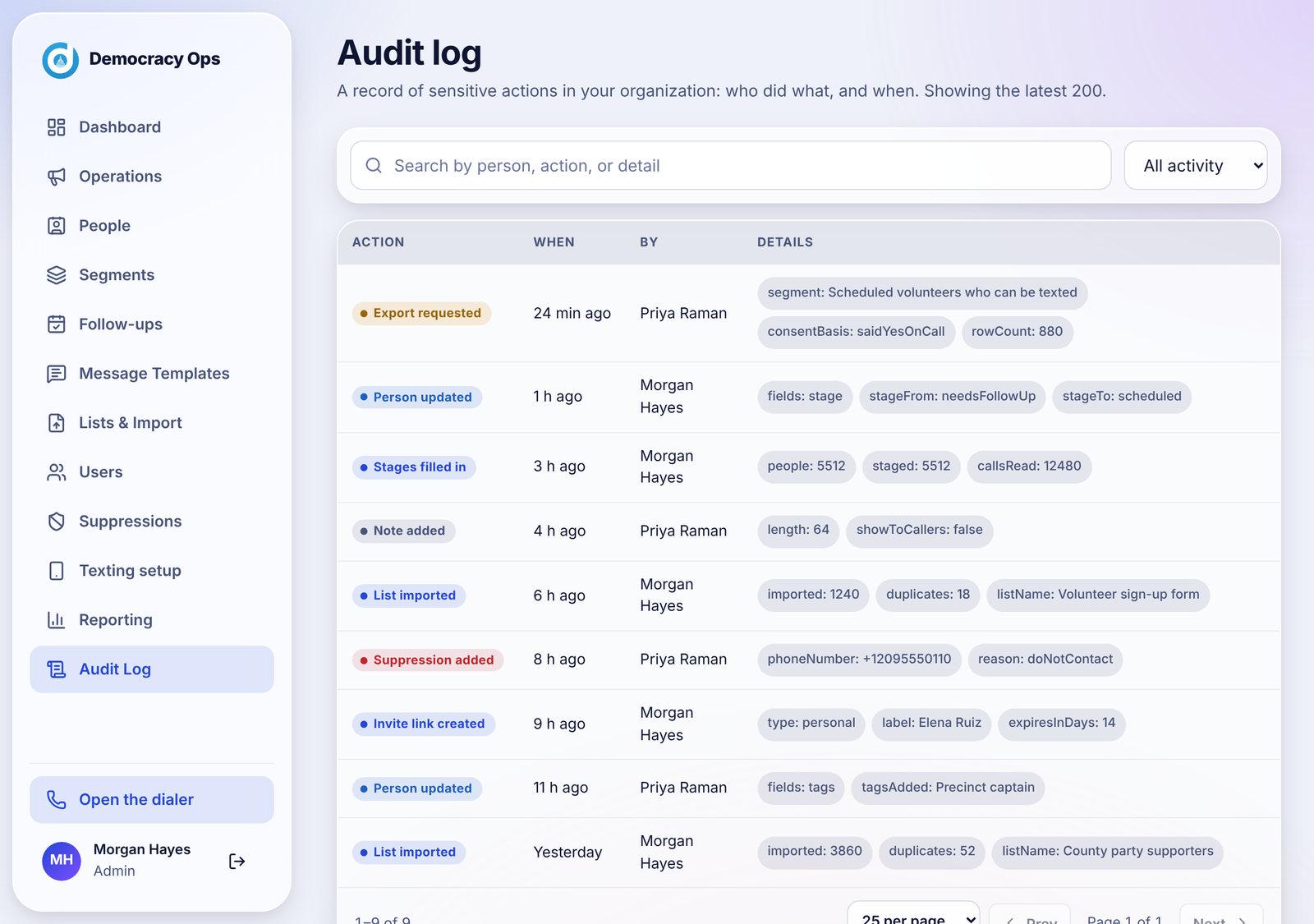
The Audit log is a record of sensitive actions in your organization. Only an org admin can read it. Each entry shows the action, when it happened, who did it, and details.

Screenshot: The Audit log with search and an activity filter.
Sample data The Audit log with search and an activity filter.

It records things such as: caller links created, replaced, revoked, used or emailed; downloads and exports; suppressions added or removed; operations created and status changes; area code order changes; scripts published; stages filled in; and People and organization settings changes. Use the search box to find a person, action or detail, and the activity filter to look at one kind of event. The page shows the latest 200 events, 25 per page.

Questions

Can organizers see the audit log?

No. Only org admins can.

Does it record every call?

No. Calls and their results are in Reporting. The audit log is for sensitive actions such as exports, link changes and suppressions.

Can I download the audit log?

It is for viewing in the app. If you need a copy for a compliance request, email us at .

People (the CRM)

One record for every person you have reached: stages, tags, owners, notes, follow-ups, saved groups, and lists for PDI.

People (the CRM)

The People list #

Every person from every list, with filters for stage, owner, last result, tag and list.

People shows everyone you have imported, one row per phone number, even if the same number was on more than one list. It is where you find someone, see where they stand and open their record.

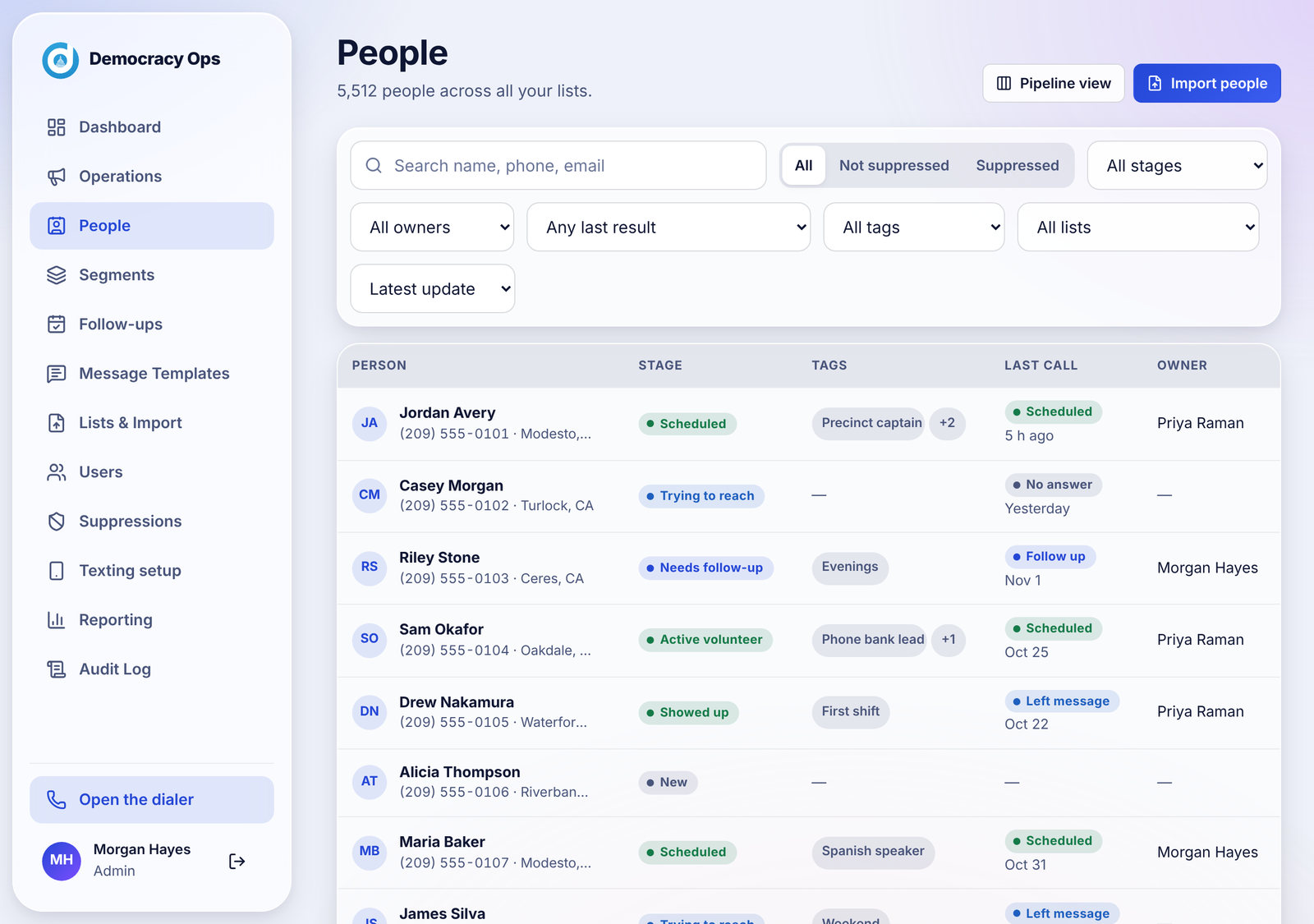
Screenshot: The People list. Each row shows the person, their stage, tags, last call and owner.
Sample data The People list. Each row shows the person, their stage, tags, last call and owner.
  • Search by name, phone number or email. A search shows the first 100 matches, so type more to narrow it down.
  • Status: All, Not suppressed or Suppressed.
  • Filters: stage, owner, last call result, tag and imported list. A tag filter and a list filter cannot be used at the same time.
  • Sort by Latest update or Last name A-Z, and show 25, 50 or 100 people per page.
  • Columns: Person (name, number, city), Stage, Tags, Last call (the result and how long ago) and Owner.
  • Pipeline view (top right) shows the same people as a board. Pipeline board

Click a person to open their page. When People has never been set up, a card at the top invites an org admin to Set up stages; see Stages.

Questions

Why do I see the same person only once when they are on two lists?

People are matched by phone number. If a number is on two lists there is one person, and the second import counts as a duplicate that is skipped.

Can I filter by tag and list together?

Not in the People list. To combine them, build a segment with a rule for each.

Where do imported people show up?

Anyone who is imported starts in the New stage and appears here and in the New column of the Pipeline.

What does Suppressed mean here?

The number is on the Suppressions list or was marked as suppressed. These people are never called or texted.

The list looks incomplete.

Check the filters at the top. The status, stage, owner, tag and list filters all narrow what you see.

People (the CRM)

A person's page #

Timeline, notes, stage, owner, tags and IDs for one person.

Click anyone in People to open their page.

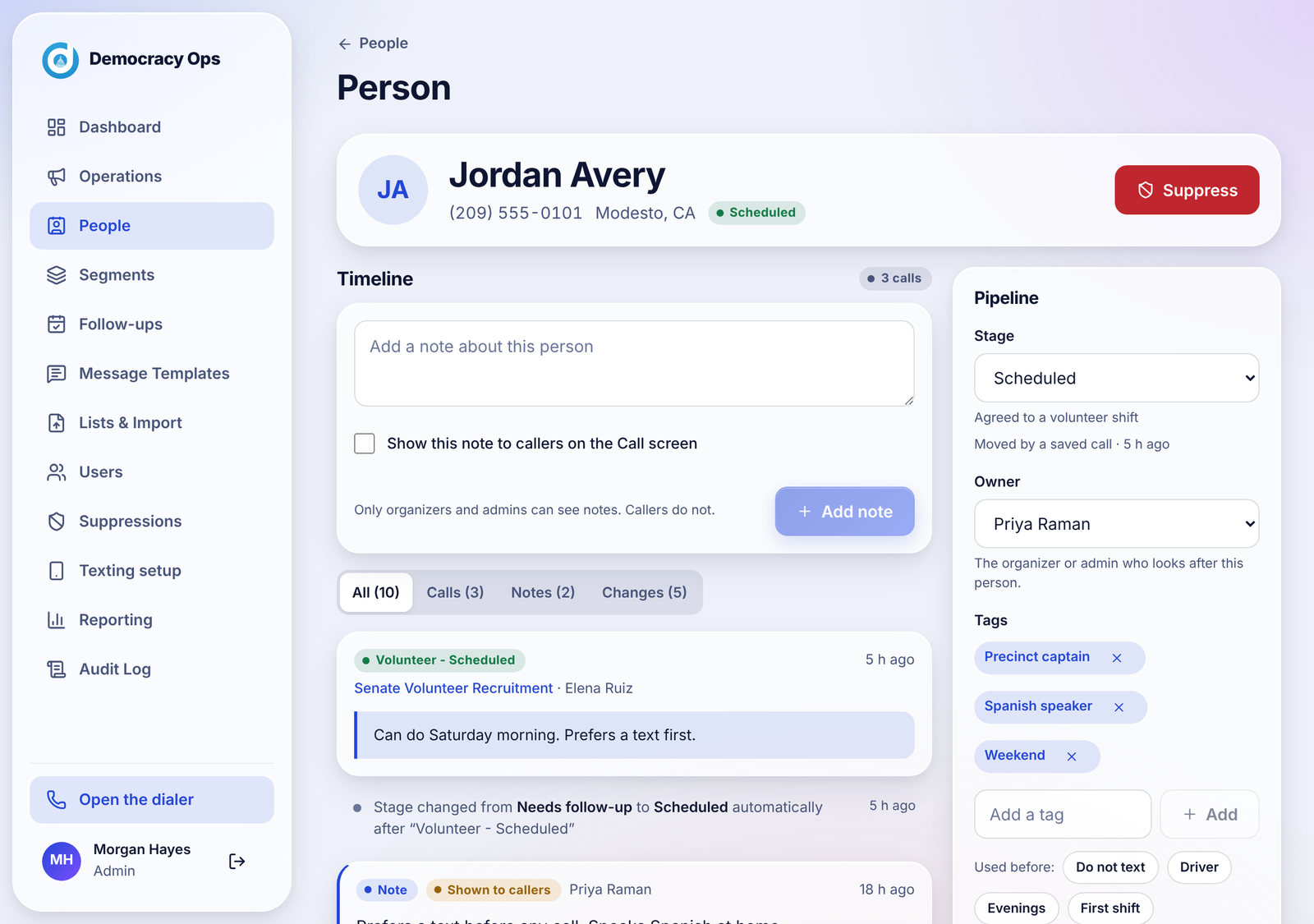
Screenshot: A person's page: the timeline on the left, and stage, owner and tags on the right.
Sample data A person's page: the timeline on the left, and stage, owner and tags on the right.

The timeline

One list for everything that has happened, newest first. Use the tabs All, Calls, Notes and Changes to narrow it. It mixes:

  • Calls: each saved result, who made the call and the caller's note.
  • Notes: things your organizers wrote.
  • Changes: stage moves, tags, owner and ID changes, and whether each was made by hand or automatically.

Notes

Type in the box at the top and tap Add note. Notes are private to organizers and admins. Callers do not see them, unless you tick Show this note to callers on the Call screen. A ticked note carries a Shown to callers badge, and callers see it on the History card while they call that person.

Stage, owner and tags

  • Stage. Change it from the menu. A small line shows who set it and when. See Stages.
  • Owner. The organizer or admin who looks after this person. Only active organizers and admins can be owners.
  • Tags. Short labels such as Driver or Evenings. Type one and tap Add, or tap a tag you have used before. Up to 20 tags per person, 30 characters each, and up to 300 different tags in your organization.
  • IDs. Optional PDI and VAN ID fields hold the person's ID in those systems so you can match them later. IDs can use letters, digits and . _ - / and be up to 40 characters.
Suppress

The red Suppress button (it asks you to confirm) puts the person on the Suppressions list so they are never called or texted. Only an org admin can lift a suppression later, with Lift suppression on the same page.

Follow-ups

A panel at the top of the right column lists this person's follow-ups and lets you add one. See Follow-ups.

Questions

Who can see the notes I write?

Organizers and org admins. Callers cannot, unless you tick Show this note to callers on the Call screen on that note.

Can I edit or delete a note?

A note can be deleted by the person who wrote it or by an org admin. The deletion is recorded in the Audit log.

Why did a person's stage change by itself?

Automatic stages may be turned on, so a saved call moved them. The Changes tab says whether a move was automatic. See Stages.

Can I put more than 20 tags on a person?

No. The limit is 20 tags per person.

What are the PDI and VAN fields for?

They hold the person's ID in those systems. Democracy Ops does not talk to VAN yet; the field simply keeps the ID with the person.

People (the CRM)

Stages #

The seven stages, how a person moves between them, and the optional automatic updates.

Every person has one stage. There are seven, and the list is fixed so everyone on your team means the same thing by them. Suppressed is a flag on a person, not a stage.

StageMeaning
NewImported, not reached yet.
Trying to reachLeft a message or no answer.
Needs follow-upAsked for another call.
ScheduledAgreed to a volunteer shift.
Showed upCame to a shift. Set by hand for now.
Active volunteerComes back. Set by hand for now.
DeclinedNot available to volunteer.

Setting stages up (org admin, once)

If nobody has a stage yet, a card at the top of People says Set up stages. It gives each person a starting stage from their call history: someone who agreed to volunteer becomes Scheduled, someone who never picked up becomes Trying to reach, and everyone not yet called stays New.

  1. Tap Check first. It shows the counts and changes nothing.
  2. If it looks right, tap Fill stages (unlocked only after you check) and confirm. It is safe to run again.

Automatic stage updates (org admin, optional)

After stages are filled, an admin can turn on Automatic stages. Each saved call then moves the person by these rules. It runs after the call is saved, so it never slows a caller down, and you can turn it off at any time.

Call resultWhat happens to the stage
Left message, No answerTrying to reach, but only from New or Trying to reach.
Volunteer - Needs Follow UpNeeds follow-up.
Volunteer - ScheduledScheduled.
Not available to volunteerDeclined, but only from New, Trying to reach or Needs follow-up.
Hang up, See note, Do Not Call, Wrong numberNo change.

Showed up and Active volunteer are never moved by a call. Anything you set by hand stays until a later call changes it by these rules.

Questions

Can I add my own stages?

No. The seven stages are fixed so reports and segments mean the same thing for everyone.

Why can't I see Fill stages?

Only an org admin can run it, and it unlocks after you tap Check first.

Are automatic stages on by default?

No. They are off until an org admin turns them on. Until then stages change only when someone changes them by hand (or runs Fill stages).

A person who agreed to volunteer is still "Needs follow-up."

Automatic stages may be off. Open the person's page and set the stage by hand, or ask your org admin to turn on automatic stages.

What happens when someone is on Do Not Call?

They are suppressed, which keeps them from being called or texted. The result itself does not change their stage.

People (the CRM)

The Pipeline board #

See everyone by stage and move people between stages by dragging or with a menu.

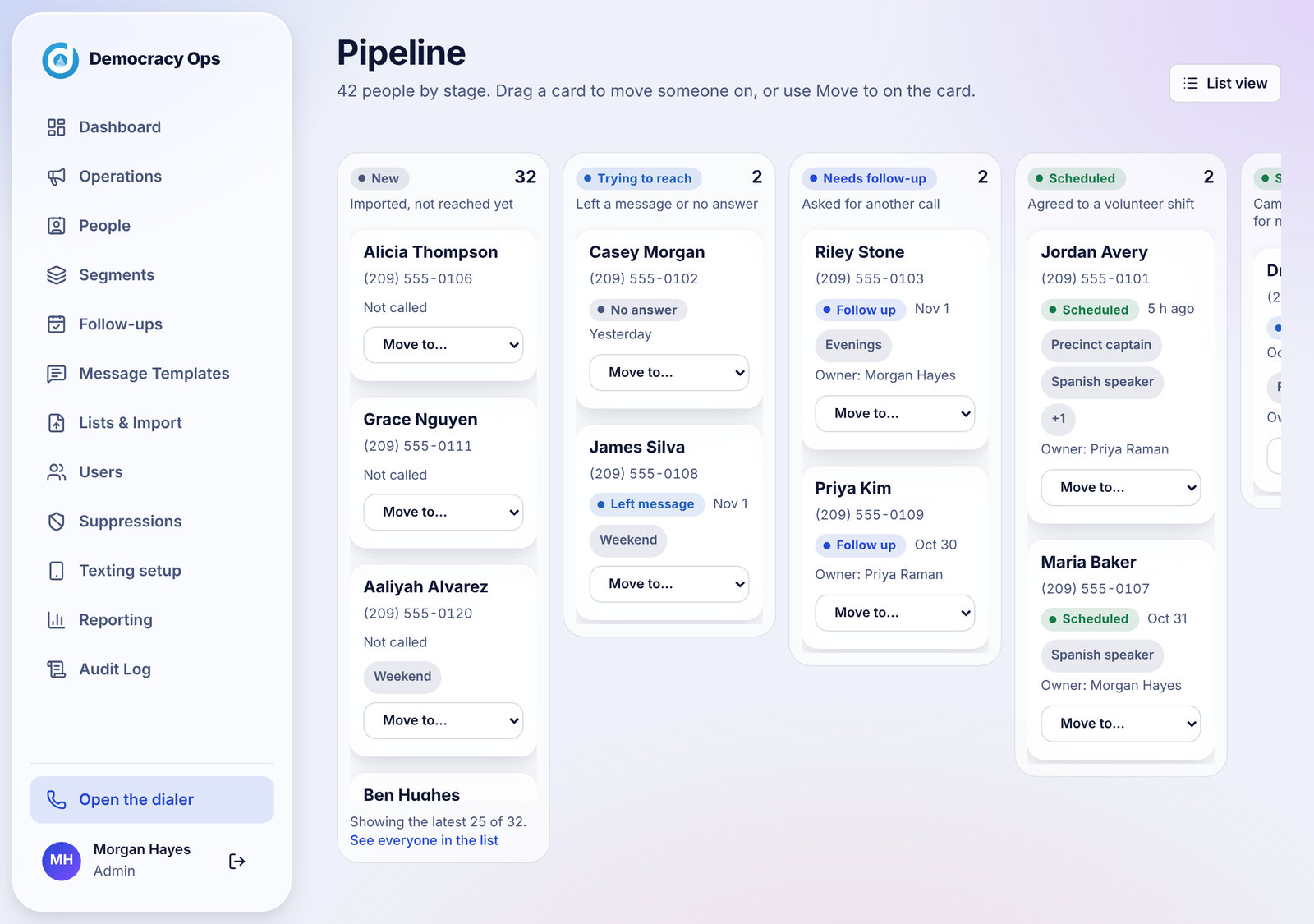
Tap Pipeline view on People to see the same people as a board with one column per stage and a count at the top of each. A banner reminds an admin to fill stages if nobody has one yet.

Screenshot: The Pipeline board. Each card shows the person, their tags and last call; Move to... changes the stage.
Sample data The Pipeline board. Each card shows the person, their tags and last call; Move to... changes the stage.
  • Move a person by dragging their card to another column, or by tapping Move to... on the card. The menu works on a phone too.
  • Every move is written to the person's timeline and the Audit log, the same as changing the stage on their page.
  • Each column shows the latest 25 people. Tap See everyone in the list to open the full People list for that stage.
  • List view takes you back to People.

Questions

Why does a column only show some of the people?

Each column shows the 25 most recently updated people and a count of everyone in the stage. Use See everyone in the list for the rest.

Does the board update while I look at it?

Yes. It updates live, so a move your coworker makes appears for you.

Can callers see the pipeline?

No. It is in the admin area for organizers and org admins.

The board is empty.

Nobody has a stage yet. An org admin can fill them in from call history on the People page. Importing a list also puts everyone in the New column.

People (the CRM)

Segments #

Save a group of people defined by rules, count them, and then download, tag or follow up with all of them.

A segment is a saved group of people defined by rules. Use it when you will want the same group again, such as "scheduled volunteers who said it's OK to text and have no PDI ID yet."

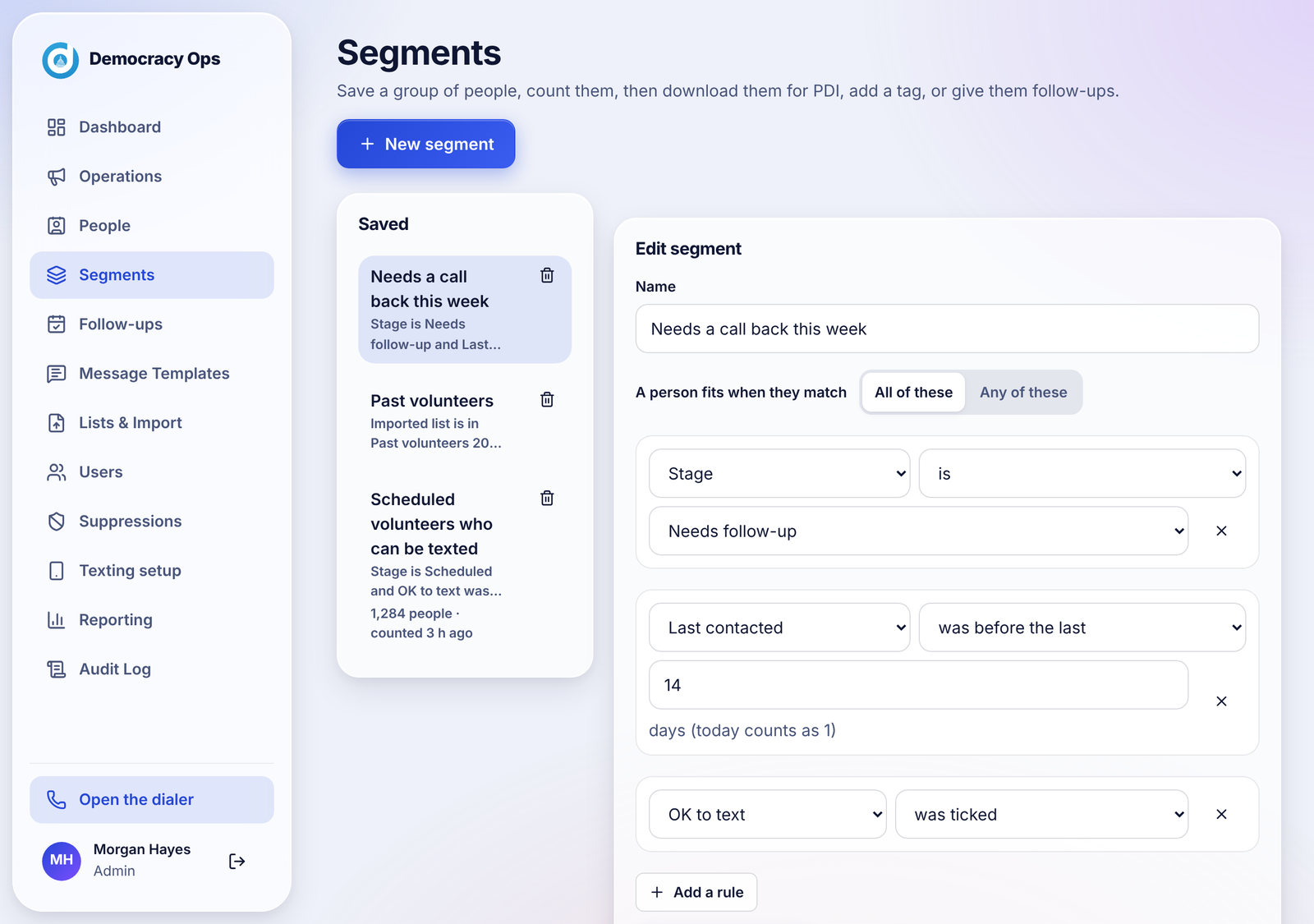
Screenshot: Segments: saved groups on the left; the rule builder on the right.
Sample data Segments: saved groups on the left; the rule builder on the right.

Building one

  1. Tap New segment and give it a name.
  2. Choose whether a person fits when they match All of these or Any of these.
  3. Add rules (up to 10). Each rule is a field, a question and a value:
    • Stage is or is not a stage.
    • Tag has or does not have a tag.
    • Owner is a person, is not, has no owner, or has an owner.
    • Last call result is, is not, or was never called.
    • Last contacted was in the last N days, was before the last N days, or was never. The number is 1 to 365 days, in Pacific days, and today counts as day 1.
    • Last operation is or is not an operation.
    • Imported list is in or is not in a list.
    • OK to text was ticked, or was not ticked, on a call.
    • PDI ID is filled in, or is empty.
  4. Tap Count people. Counting changes nothing: it shows how many fit, a break-down by stage, a sample of the first people, and who a download would leave out and why. A large list can take up to a minute.
  5. Tap Save (or Save as new) to keep the rules.

If you change a rule after counting, the page tells you to count again before you act. You can keep up to 100 segments, with names up to 60 characters.

What you can do with a segment

  • Download for PDI. See Sending people to PDI.
  • Add a tag to everyone who fits so you can find them from the People list. People who already have the tag, or already have 20 tags, are skipped. You can tag up to 20,000 people at a time; narrow the segment first if it is larger.
  • Create follow-ups for everyone who fits, with an optional note and due date, for anyone on the team or a named organizer. People on the Do Not Contact list and people who already have an open follow-up are skipped.

Questions

Do I have to count before I download or tag?

Yes. Counting shows who fits and who would be left out, and the actions use that count. If you change a rule, count again.

Why does a segment about stage or last result come up empty?

Stages and last-call fields only fill in after an org admin runs Fill stages on People. Run Check first, then Fill stages.

What does "was in the last 14 days" mean exactly?

It uses Pacific calendar days and counts today as day 1. "Was before the last 14 days" means older than that window.

Does "OK to text" check whether someone is registered for in-app texts?

No. It looks at whether a caller ticked They said it's OK to text them on a call. In-app texting is separate; see Texting: what is live today.

Can I delete a segment?

Yes. Use the trash icon next to it. The app asks you to confirm. People are not affected.

People (the CRM)

Follow-ups #

A to-do list for the team: who to get back to, when, and who owns it. A follow-up never sends anything.

Follow-ups is the team's to-do list: people the team needs to get back to, soonest first. A follow-up is only a task. Nothing is ever sent to the person.

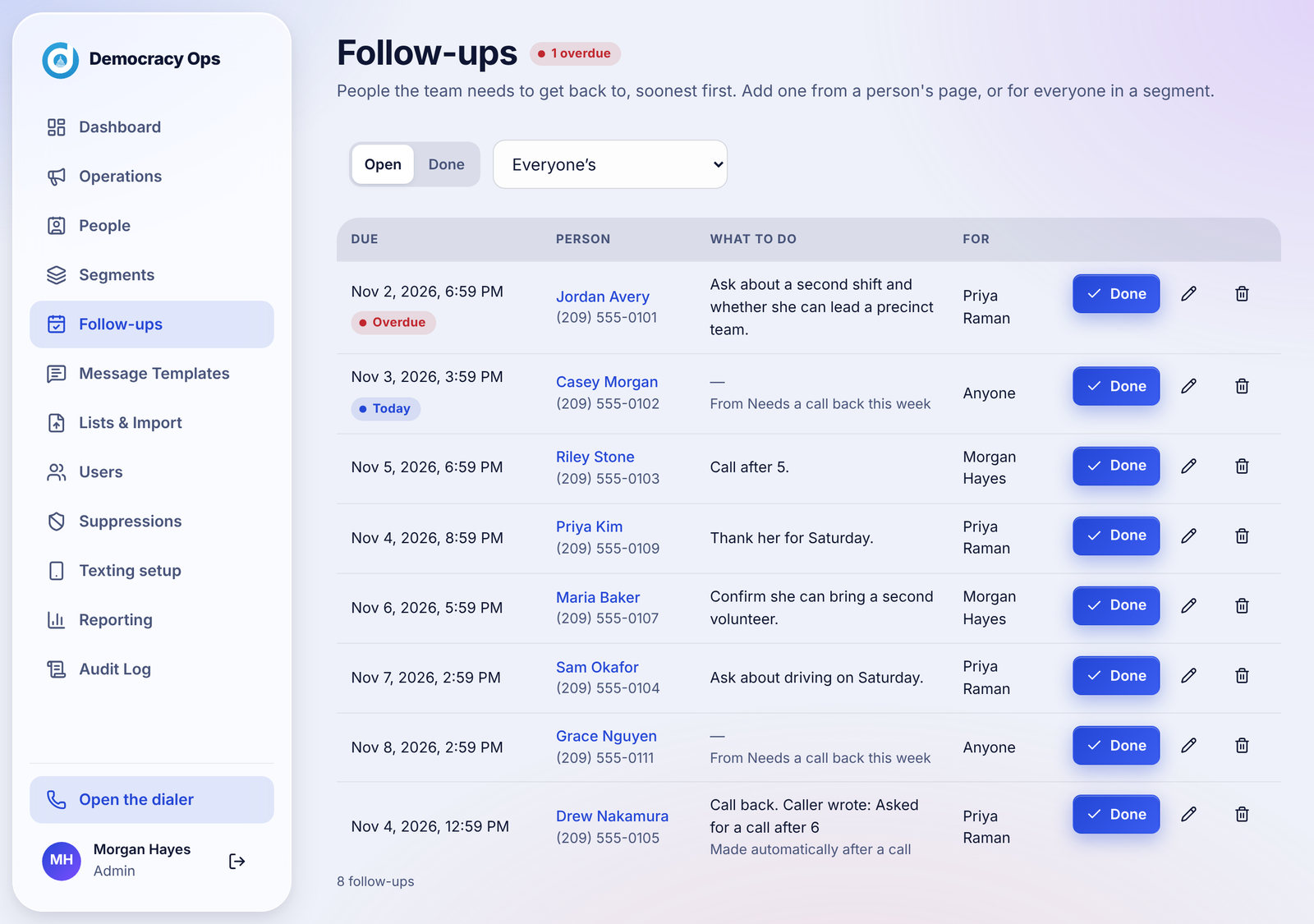
Screenshot: Follow-ups, soonest first. Red marks overdue; Today marks what is due today. Done, edit and delete are on each row.
Sample data Follow-ups, soonest first. Red marks overdue; Today marks what is due today. Done, edit and delete are on each row.
  • Open and Done tabs. Mark a task finished with Done; finished ones move to the Done tab, where you can reopen one. A menu at the top shows Everyone's, Mine, For anyone on the team, or one organizer's tasks.
  • Columns: due date and time, the person, what to do, and who it is for.
  • Add one from a person's page, or for everyone in a segment. Each has a due time, an optional note and an owner (any active organizer or admin, or anyone on the team).
  • Edit or delete with the pencil and trash icons. Deleting asks you to confirm and does not change the person.
  • A row marked Made automatically after a call was created by automatic follow-ups.

Questions

Does a follow-up send a text or an email?

No. It is only a task for your team.

Why can't I add a follow-up for this person?

People on the Suppressions list cannot have one. People who already have an open follow-up do not get a second from a segment.

Where do overdue follow-ups show up?

They are marked in red on the Follow-ups list and counted next to the page title.

Who can see follow-ups?

Organizers and org admins. Callers cannot.

People (the CRM)

Automatic follow-ups #

Optional rules that add a follow-up after certain call results. Off until an org admin turns them on.

Automatic follow-ups let your organization decide that certain call results should add a follow-up for the team, without anyone typing it in. They are off until an org admin turns them on, and you set the rules for your whole organization on the People page under Automatic follow-ups.

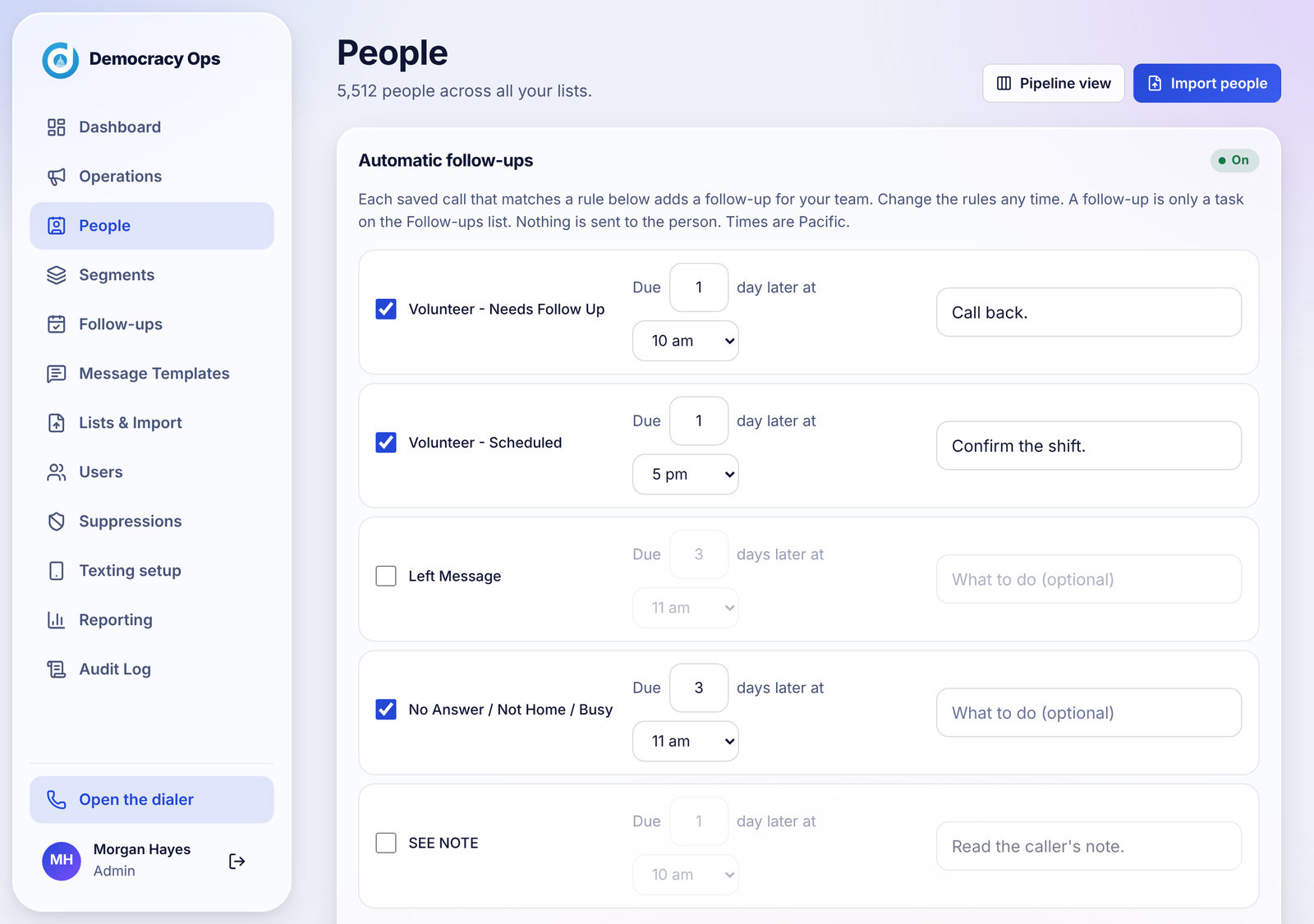
Screenshot: Automatic follow-ups: tick a result, then choose how many days later, what hour, and what to do.
Sample data Automatic follow-ups: tick a result, then choose how many days later, what hour, and what to do.

The rules

You can set a rule for up to five results. For each one you choose Days later (0 to 14), the Hour it is due (8 am to 8 pm Pacific) and an optional What to do note up to 200 characters.

Call resultStarts as
Volunteer - Needs Follow Up1 day later at 10 am: "Call back."
Volunteer - Scheduled1 day later at 5 pm: "Confirm the shift."
Left message3 days later at 11 am
No answer3 days later at 11 am
See note1 day later at 10 am: "Read the caller's note."

The follow-up's note is your rule note plus what the caller wrote. If the person has an owner who is still on the team, the follow-up is for them; otherwise it is for anyone. A rule that is due today but whose hour has passed is due the next day at that hour.

Turning it on

Tick at least one result, then tap Turn on and confirm. To keep your rules without activating them, tap Save rules without turning on. You can turn it off any time; follow-ups already made stay on the list.

What it skips

  • Only fresh calls count. Calls brought in from history, and a call that is processed more than about six hours late, never make one.
  • A call where the caller already set a callback does not make one.
  • Someone who already has an open follow-up does not get a second one.
  • People on the do-not-contact list, and people in the Declined stage, are skipped.
  • Do Not Call and Wrong number cannot have a rule. They close any follow-up the system made for that person. Follow-ups you made by hand are never touched.

Questions

Is this on by default?

No. An org admin has to turn it on.

Will the person get a message from this?

No. It only adds a task to the Follow-ups list.

Can organizers change the rules?

Only an org admin can turn it on or change the rules.

I turned it on and no follow-ups appeared.

Only calls saved after you turned it on can make one, and only for the results you ticked. Calls that set a callback, people who already have an open follow-up, and people in Declined or on Do Not Contact are skipped.

Can I stop one that was made by mistake?

Yes. Open Follow-ups and delete it, or mark it done. It does not change the person.

People (the CRM)

Sending people to PDI #

Download the four-column file PDI imports, with the rules that keep it safe.

Many campaigns text people through PDI. Democracy Ops makes the file you upload there. The file has four columns, the ones PDI imports: First name, Last name, Mobile phone and Email address. You can choose Excel (.xlsx), CSV, or plain-text CSV.

There are two places to get it:

  • From a segment. Count a segment, then Download for PDI.
  • From calls. Reporting, then Downloads, then Texting list for PDI. Choose which calls to use, how far back (Today or the last several days), an operation, and a file type, then tap Download new list. The two choices are:
    • Only people a caller ticked "OK to text" for. Whatever the call result was, except Do Not Call and Wrong number. Each person is on one list only.
    • Everyone who was called. Only for results that call for a reminder: Left message, No answer and Volunteer - Scheduled. It leaves out anyone who was not available, hung up, needs a follow-up call, asked not to be called, has a wrong number or has a See note result, ticked or not. Use it when everyone on your call list has already agreed to texts, such as past volunteers. Choosing it is recorded in the Audit log as your statement that the people called are opted in.

Who is left out

  • Anyone on the Do Not Call list or any suppression.
  • Anyone with a number that cannot be texted.
  • Anyone who was in a download in the last 7 days, so nobody is listed twice.

From a segment you also choose who has agreed to be texted: Only people a caller ticked "OK to text" for, or Everyone here has already agreed (for past volunteers, say). The second is recorded in the Audit log as your statement that everyone in the file is opted in, and people whose last call was Not available, Hang up, Needs follow-up or See note are still left out. A file holds up to 50,000 people. If there are more, download, count again, and download again for the rest.

Every download is recorded in the Audit log. The page keeps your earlier lists so you can Download again if you lose a file; anyone added to Do Not Call since is left out of the new copy.

Questions

Does downloading a list send any texts?

No. It only makes a file. You upload it to PDI and send texts there.

Why is the file smaller than the segment count?

The count shows who would be left out and why: suppressed numbers, numbers that cannot be texted, and people in a download in the last 7 days.

What does "OK to text" mean?

A caller ticked They said it's OK to text them while saving the call. It is how a person says yes on the phone.

Can I send the same person twice?

Not within 7 days. Each person is marked as listed when they are included in a download.

Does Democracy Ops sync with PDI or VAN automatically?

No. You download a file and upload it yourself. A direct VAN connection is not available yet.

Texting

What works today, what is waiting on carrier approval, and the rules that apply when it is on.

Texting

Texting: what is live today #

In-app follow-up texts are not switched on yet. Here is what works now, what is waiting, and what is not built.

What works today

  • Calling. Everything in this guide about calling, scripts, results, callbacks and reporting.
  • The "OK to text" tick. When a person says it is fine to text them, the caller ticks They said it's OK to text before saving. That is stored with the call.
  • Text from your phone. While in-app texting is off, the result screen shows Text (first name) from your phone. After the caller ticks the box, a Messages button opens the phone's own messaging app with the number filled in. Democracy Ops does not send or see that message. It is not offered after Do Not Call or Wrong number.
  • The texting list for PDI. People who said yes can be downloaded as a file for PDI. See Sending people to PDI.
  • Texting setup and templates. Your org admin can fill in the registration and write message templates ahead of time. See Texting setup and Message templates.

What is waiting on approval

  • Send a follow-up text. The panel on the result screen that sends an approved message through Democracy Ops. It needs your organization's carrier registration to be approved and a texting number to be set up. After that, Democracy Ops switches texting on for your organization, and an operation also needs its own Follow-up texts switch turned on.

What is not built

  • A two-way inbox. Replies from people are not shown in the app. The one reply that is handled automatically, once texting is on, is a request to stop (see The texting rules).
  • Personalized texts. A template is sent exactly as written. It does not fill in the person's name.
  • Sending in bulk. Texts are one at a time, after a call, by the caller. Mass texting is done in PDI with the downloaded list.

Questions

Can callers send texts through Democracy Ops right now?

Not yet. The Send a follow-up text panel appears only after your organization's carrier registration is approved and Democracy Ops has switched texting on for you.

What is the "Text from your phone" button?

It opens the caller's own messaging app with the person's number. The caller types and sends from their own phone. Democracy Ops does not send or record the message. It only shows after the caller picks a result and ticks They said it's OK to text.

Why is texting separate from calling?

Carriers treat texts from campaigns differently from calls. Each campaign must be registered under its own name, with its own sample messages and consent practice, before it can send. Calls have no such registration.

How long does approval take?

The Texting setup page says it can take a week or more. Submit early if you plan to text after your operations.

Will I see people's replies in the app?

No. There is no inbox. Replies go to the texting number, not to your callers.

Can I text everyone on my list?

Not through the follow-up text panel, which is one text per call to a person who said yes. For a larger reminder send, download the texting list for PDI and send from there.

Texting

Texting setup #

How an org admin fills in the carrier registration, and what each status means.

Texting setup is the page where an org admin gives the details carriers require. You fill it in once. Democracy Ops reviews it and files the registration for you. Only an org admin can open it; organizers see a short message instead.

Screenshot: Texting setup: organization, contact person, Campaign Verify, sample messages and the consent statement.
Sample data Texting setup: organization, contact person, Campaign Verify, sample messages and the consent statement.

What you fill in

  • Organization. Legal name (exactly as on your FEC or IRS filings), FEC committee ID and/or EIN (give one or both), street address, city, state, ZIP, website and a link to your privacy policy page.
  • Contact person. Name, title, email and phone of someone the carriers can reach.
  • Campaign Verify. Political texting needs a Campaign Verify token, which confirms the committee is real. Get one at campaignverify.org (they charge their own one-time fee) and paste it in. Once saved, it shows only as "A token is saved" and only Democracy Ops staff can see it.
  • Sample messages. Two or three, up to 320 characters each. Each must name your organization and tell people they can reply STOP. Edit the examples shown so they match what your callers would really send.
  • Consent. A tick box confirming that your callers ask each person for permission on the call before any text is sent, that you text only people who say yes, and that replying STOP ends all texts and calls to that person.

Saving and submitting

Save draft keeps what you have entered. Submit for review sends it to Democracy Ops. After you submit, the form locks. To change something, contact support.

What the status means

StatusWhat it meansYour move
Not started / DraftNothing has been sent yet.Fill it in and submit.
SubmittedReceived. The page shows when.Wait; we write if we have questions.
In reviewDemocracy Ops is working through the carrier registration.Nothing, unless we write to you.
Needs changesSomething has to be fixed. The page shows what.Fix the items and submit again.
ApprovedThe registration is approved.We switch texting on once your texting number is ready.

Questions

Who can fill this in?

Only an org admin of your organization.

Do I need both an FEC ID and an EIN?

No. Give the FEC ID, the EIN, or both.

What is Campaign Verify and what does it cost?

It is a separate service that confirms a political committee is real. It charges its own one-time fee, paid to them. Democracy Ops does not receive it.

Who sees my Campaign Verify token?

Only Democracy Ops staff. After you save it the page only says a token is saved, and you can paste a new one to replace it.

I made a mistake after I submitted.

The form is locked while it is under review. Contact support and say what needs changing. If we send it back with Needs changes, you can edit and submit again.

Can callers keep calling while this is reviewed?

Yes. Calling works the whole time. Only the in-app follow-up texts wait.

What should my sample messages say?

Name your organization, say why you are writing, include a link if you will, and say they can reply STOP to opt out. The page suggests two examples you can edit.

Texting

Message templates #

The pre-approved texts a caller can send, which outcomes each is allowed after, and who can write them.

Message Templates holds the texts a caller is allowed to send. A caller cannot write their own message; they can only pick one of these, and only if it fits the result they logged.

Screenshot: Message templates. Each card shows the message, the outcomes it can follow, and whether it is active.
Sample data Message templates. Each card shows the message, the outcomes it can follow, and whether it is active.

Writing one (org admin)

  1. Tap New template.
  2. Give it a Name (your team only; it is never sent; up to 120 characters).
  3. Write the Message, up to 320 characters. A preview shows how it looks.
  4. Under Can be sent after these outcomes, tap each result it may follow. Do Not Call and Wrong number never appear in this list.
  5. Leave Active on, then tap Create template. An inactive template cannot be sent.

To change one, tap Edit on its card.

What to know

  • Only an org admin can create or edit templates. Organizers can see them. The server enforces this too.
  • The opt-out line is added for you. If your message does not already tell people to reply STOP, "Reply STOP to opt out." is added at the end. The caller sees the text exactly as it will go out.
  • Not personalized. The message is sent as written. Do not use placeholders like a first name; they are not filled in.
  • A caller only sees templates that are active and approved for the result they chose. If none fit, the follow-up text panel stays hidden.

Questions

Can a caller write their own text?

No. Callers choose from the templates an org admin approved.

Do I have to include "Reply STOP"?

No, it is added automatically if it is missing. Including it yourself lets you put it where it reads best. Keep the whole message within 320 characters.

Why do I not see Do Not Call or Wrong number as outcomes?

Texts are never allowed after those results.

Can I use the person's name in the message?

Not automatically. Messages are sent as written, so a placeholder would be sent as plain text. Write the message so it reads well without a name.

I made a template but callers do not see it.

Check that it is Active, that it is allowed after the result the caller chose, and that texting is switched on for your organization and for the operation. See Texting: what is live today.

Texting

The texting rules #

The checks the app makes before any follow-up text goes out, and what happens when someone replies STOP.

These checks are made by the server when a text is sent, not just on the screen, so they hold even if someone tries to get around the buttons. A text goes out only when every one of them passes.

  1. Texting is on for your organization, and the operation's Follow-up texts switch is on.
  2. The caller confirmed consent. They ticked They said it's OK to text them.
  3. The result allows it. Never after Do Not Call or Wrong number.
  4. The person is not suppressed, either by their record or by their phone number being on the Suppressions list, and the number is not marked invalid.
  5. It is inside texting hours for where the person lives: the same window as calling, 8 AM to 8 PM their time unless your organization narrowed it.
  6. The template is active and approved for that result.
  7. Only one text per call. Tapping the button twice does not send two.

Every message ends with a way to opt out. If the template does not already say so, the standard "Reply STOP to opt out." line is added.

When someone replies STOP

Once texting is on, a reply of STOP, STOPALL, UNSUBSCRIBE, CANCEL, END, QUIT, REVOKE or OPTOUT puts that number on your Suppressions list as a messaging opt-out. The person's record is marked suppressed, so they are not called or texted again. Lifting that is an org admin decision on the Suppressions page.

Delivery

After a text is sent, the app records whether it was queued, sent, delivered or failed.

Questions

Can a caller text someone who has not agreed?

No. The caller must confirm that the person said it is OK, and the text is blocked without it. The same confirmation is what puts someone on the PDI texting list.

Why is the Send button greyed out?

The consent box is not ticked yet. Once it is, the button turns on.

Someone replied STOP. What do I do?

Nothing. Once texting is on, the number is suppressed for you automatically.

Can a person who replied STOP be added back?

An org admin can lift a suppression on the person's page. Only do this if the person has clearly asked to be contacted again.

What if a text fails to send?

The caller sees an error message, such as "The text couldn't be sent. Try again in a moment.", and can tap again. A text that is already queued or sent is not sent twice.

Do the texting rules apply to "Text from your phone"?

The app offers that button only after the caller ticks the consent box and never after Do Not Call or Wrong number. But the message is sent from the caller's own phone, outside Democracy Ops, so the app cannot check hours or opt-outs for it. Follow the same rules by hand.

Safety and privacy

The rules the app enforces for you, how people are protected, and how your data is handled.

Safety and privacy

Rules the app enforces for you #

Calling hours, suppression, retry limits, one caller per person, call limits and role checks, all done on the server.

Democracy Ops is built so the important rules are checked by the server, not left to a caller's memory or to a button being hidden. Here is what is checked, and where you can read more.

RuleHow it works
Calling hoursPeople are offered only between 8 AM and 8 PM in their own time zone, taken from the area code. Your organization can narrow this, never widen it past 8 AM to 9 PM. Unknown area codes are treated cautiously. Details
Do Not CallSaving DO NOT CALL puts the number on the Suppressions list. It is left out of every operation and every text from then on. Suppressions
Wrong numberSaving Wrong number also suppresses the number.
Checked again at dial timeSuppression is checked when a person is given to a caller and again when the call is placed, in case a number was added in between.
One caller per personA person is held for one caller for 10 minutes. Nobody else is given them, and a caller can only dial the person they were given.
Retry limitsNo answer puts someone back in the queue after 2 hours, up to 3 tries. Details
Call limits per callerCallers are limited to 80 calls an hour and 250 a day, and a shared link has a daily total, so a leaked link cannot place thousands of calls. Details
RolesCallers cannot browse your list. They can only see the one person they have been given. Organizers and org admins have more, and only org admins can remove suppressions, write message templates, fill in Texting setup, change roles or read the Audit log. Who can do what
Texting checksConsent, calling hours, suppression, an approved template and one text per call. The texting rules
An audit trailSensitive actions are recorded: who did what and when. The Audit log

Questions

Can a caller get around calling hours?

No. The server decides who can be offered and when. A caller cannot pick a person or override the hours.

What stops someone from calling a person who said do not call?

The number is on the Suppressions list. It is never handed to a caller, and it is checked again when the call is placed.

Do these rules apply to organizers and admins who call?

Yes. The calling hours, suppression and one-caller-per-person rules apply to everyone. The per-caller call limits apply to the caller role; organizers and admins are not limited.

Does the app check state-specific calling laws?

It applies the 8 AM to 8 PM window you see here, which your organization can narrow. Some states have stricter rules for some kinds of calls, and a person who moved may keep an old number. Check the rules that apply to your campaign.

What if a person asks to be removed after the call?

An organizer or admin can add them on the Suppressions page with the reason Do not contact, or open their record in People and tap Suppress.

Safety and privacy

Privacy and your data #

What the app stores, what callers can see, how links are protected, and what is not recorded.

The short version, in plain words:

  • Your organization owns the list. You decide why and how people on it are contacted. Democracy Ops acts as a service provider on your behalf. Your organization must have the authority to contact the people it uploads.
  • Calls are not recorded. The caller's microphone is used only to connect the call. The app keeps the result a caller saves and the notes they write, not the audio.
  • Callers see one person at a time. The person they have been given, with the name, number, city and History card for that call. Callers cannot list or search your people.
  • Organizations are kept apart. Each user belongs to one organization and can only reach that organization's records.
  • Notes are visible to organizers. A caller's note can be read by organizers and admins in Reporting and on the person's page, and it appears on the History card for the next caller. Write notes you are comfortable with the organization reading.
  • The public website does not use cookies or analytics. This help center is part of it.

How calling links are protected

  • The secret in a link sits after the # in the address, a part browsers do not send to servers or put in server logs.
  • Only a one-way fingerprint (a SHA-256 hash) of the secret is stored, not the secret itself.
  • Links expire, can be given a passcode, can be limited in how many people may join, and can be revoked at any time. Revoking signs out everyone who joined with that link.
  • Even without a login screen, every caller is signed in as a real user, so each call is attributed to a name.

Passwords

Organizers and admins sign in with an email and password through Google Firebase Authentication. Democracy Ops does not store passwords in readable form.

Where the full policies are

This page is a plain summary. The Privacy Policy and Terms and Conditions are the official documents. They cover what is collected, how long it is kept, how to ask for deletion, and how mobile numbers and text consent are handled.

Questions

Is the audio of calls recorded?

No. Democracy Ops does not record call audio.

Can a caller download my list?

No. Callers see only the person they have been given. Downloads are for organizers and admins, and every download is recorded in the Audit log.

Who at Democracy Ops can see my organization's data?

Democracy Ops operates the service, and our staff can reach organization records when needed to run and support it, as described in the Privacy Policy. Ask if you need specifics for your organization.

Do you sell or share phone numbers?

No. The Privacy Policy says mobile numbers and text consent are not sold, rented or shared with third parties or affiliates for their own marketing.

A link was shared with the wrong people. What do I do?

Open Users, find the link and tap Revoke. Everyone who joined with it is signed out right away. Then create a new link, ideally with a passcode. See Users and caller links.

How do I ask for my organization's data to be deleted?

Contact support at . The Privacy Policy explains deletion and account termination.

Why does the join link use a # in the address?

The part after the # is never sent to a server, so the secret does not end up in server logs.

Can I use a list I bought or scraped?

Use only lists your organization is authorized to contact. The Privacy Policy states that organizations are responsible for having appropriate authority to collect, upload, use and communicate with the people on their lists.

Reference

Quick lookups: results and what they do, limits, what is not built yet, and fixes for common problems.

Reference

What each result does #

One table showing, for all nine results, whether the person is called again, suppressed, counted, or eligible for a text and a follow-up.

A summary of the nine results a caller can save. Details for each are in Saving the result.

ResultCalled again?Suppressed?Counts as a volunteer?In-app text allowed?Automatic stage*Automatic follow-up rule?*
Volunteer - ScheduledNoNoYesYesScheduledYes
Volunteer - Needs Follow UpNoNoNoYesNeeds follow-upYes
Not available to volunteerNoNoNoYesDeclined (from New, Trying to reach or Needs follow-up)No
DO NOT CALLNoYesNoNoNo changeNo
Wrong numberNoYesNoNoNo changeNo
Hang upNoNoNoYesNo changeNo
Left messageNoNoNoYesTrying to reach (from New or Trying to reach)Yes
No answer / not home / busyYes: after 2 hours, up to 3 triesNoNoYesTrying to reach (from New or Trying to reach)Yes
See noteNoNoNoYesNo changeYes

* Only when your org admin has turned on automatic stages, or set up an automatic follow-up rule for that result. "In-app text allowed" also needs texting to be switched on and an approved template; see Texting: what is live today. The texting list for PDI follows its own, stricter rules; see Sending people to PDI.

Questions

Which result do I use if a person asked not to be called?

DO NOT CALL. It suppresses the number for the whole organization.

Does "Hang up" suppress the number?

No. It is recorded and the person is not tried again by this operation, but they are not on the Suppressions list.

Which results can have a callback?

All except DO NOT CALL and Wrong number.

Reference

Numbers and limits #

Every number in this guide in one place: hours, holds, retries, call limits, and caps on tags, segments, files and templates.

WhatValueMore
Calling hours8 AM to 8 PM in the person's time zone. Narrowable, never past 8 AM to 9 PM.Who gets called
A person is held for a caller10 minutesMaking a call
No answer retryAfter 2 hours, up to 3 attemptsWho gets called
Call limit per caller80 an hour and 250 a day by defaultLimits and breaks
Call limit per shared link1,500 a day by default, all joiners combinedLimits and breaks
Callback timeAt least 5 minutes from now, up to 30 days ahead, inside calling hoursCallbacks
Personal linkExpires after 14 days by default, up to 90Users and caller links
Shared linkExpires after 7 days by default, up to 90. Up to 100 people by default, up to 1,000.Users and caller links
Tags20 per person, 30 characters each, 300 different tags per organizationA person's page
Notes on a personUp to 2,000 charactersA person's page
PDI and VAN ID fieldsUp to 40 characters: letters, digits and . _ - /A person's page
People list25, 50 or 100 per page. Search shows the first 100 matches.The People list
Pipeline columnThe 25 most recently updated peopleThe Pipeline board
Segments100 saved, 10 rules each, names up to 60 characters, "days" from 1 to 365Segments
Tag everyone in a segmentUp to 20,000 people at a timeSegments
PDI downloadUp to 50,000 people per file. Nobody twice within 7 days.Sending people to PDI
Automatic follow-ups0 to 14 days later, due 8 am to 8 pm Pacific, notes up to 200 characters, 5 resultsAutomatic follow-ups
Message templateName up to 120 characters, message up to 320Message templates
Texting sample messages2 or 3, up to 320 characters eachTexting setup

These are the defaults and limits at the time of writing. Organizations can tune some of them (such as call limits and calling hours) within fixed ceilings.

Questions

Can an organization raise the call limits?

Within a fixed ceiling, yes. Ask support. The default is 80 calls an hour and 250 a day per caller.

Can the hold time on a person be longer than 10 minutes?

No. After 10 minutes the hold lapses and the app gives the person back.

Reference

What is not built yet #

Features people sometimes ask for that Democracy Ops does not have today.

So you can plan around it, here is what does not exist today:

  • In-app follow-up texts are waiting on carrier approval and a texting number. See Texting: what is live today.
  • A two-way text inbox. Replies are not shown in the app.
  • A direct VAN connection. You can store a person's VAN ID, but nothing is synced. PDI works through a file you download and upload yourself.
  • Personalized scripts and texts. Scripts and templates are shown and sent as written. They do not fill in a name.
  • Call recording. Call audio is not recorded.
  • Bulk texting. Texts go out one at a time after a call. For a larger send, use the PDI list.
  • Editing a saved call result. Callers cannot change a result after saving. Organizers add a correction in a note.

Questions

When will texting be available?

When your carrier registration is approved and your texting number is ready. Check the status on Texting setup (org admins) or ask support.

Will there be a VAN integration?

It is not available today. Ask support if it matters to you; we like to know what campaigns need.

Can I get the replies people send to my texts?

Not in the app today. The only reply handled automatically, once texting is on, is a request to stop.

Reference

Troubleshooting #

The messages callers and admins see most, what causes each, and the fix.

What you seeLikely causeWhat to do
"This link isn't working."The link expired, was replaced or was revoked.Ask the organizer for a new one. Joining with a link
Stuck on "Setting up" or "Voice unavailable"No internet, or the browser has not been allowed to use the microphone.Check your connection, allow the microphone for the site and reload. The calling screen
"Outside calling hours."Everyone left is outside 8 AM to 8 PM where they live.Wait and check again. The screen shows when the next people open up. Limits and breaks
"Time for a break."The caller reached the hourly or daily call limit.Take a break. The limit resets. Limits and breaks
"You're all caught up."Nobody is left to call right now: all done, on a cooldown or held.Check again later, or ask an organizer to add a list. Who gets called
Callers cannot get anyoneThe operation is still a draft or is paused, or everyone left is outside hours or on a cooldown.Open the operation and check its status. Operations
Save and continue is grayed outNo result has been picked. See note also needs a note.Pick one of the nine tiles and add a note if it is See note. Saving the result
Import skipped some rowsDuplicates: those phone numbers were already in your organization.Nothing is lost; the existing person keeps their history. Importing a list
Counts or stages on People look emptyStages have not been filled in yet.An org admin runs Check first, then Fill stages. Stages
No follow-ups appear automaticallyThe feature is off, or the calls were saved before it was turned on.An org admin turns it on and ticks results. Automatic follow-ups
The Send text panel is missingTexting is off for the organization or operation, or no approved template fits the result.See Texting: what is live today.
A page of the admin area will not openThe role does not allow it.Ask an org admin to change your role. Who can do what

If none of these fits, see Getting help for what to include in your message.

Questions

The app asks for the microphone and I clicked Block by mistake.

Open the site's permissions in your browser (usually the lock or tune icon in the address bar), set the microphone to Allow, and reload the page.

The page looks out of date after an update.

Reload the page, or close the app and open it again.

I changed something and nothing happened.

Check for a message at the top or bottom of the page. Organizers' changes show a confirmation, and an error says what to fix.